Logs
Every lead received and every call made about it: lead logs, conversion logs and what each status means.
Logs record every lead EventsIQ received and every call it made about each one: the destinations it offered the lead to, the events it fired, and the postbacks it received. When something did not happen the way you expected, this is where the answer is.
You'll find them under Measure → Activity: Lead logs and Conversion logs. Leads next to them is a plain list of the leads themselves.
- Lead logs: one row per lead. "Did this lead arrive, and who bought it?"
- Conversion logs: one row per event or postback. "Did Meta, TikTok, Snapchat or Google hear about the sale?"
The summary cards
Both tabs share five cards across the top. Click one to filter the table to it.
| Card | What it counts |
|---|---|
| Leads | Every lead received, whatever happened next |
| Sold | Leads a destination accepted |
| Unsold | Leads that went through the whole waterfall and nobody took |
| Failed | Calls to a destination or event that broke |
| Scheduled | Leads held because a destination's cap was full, sending the next day |
How many failed calls nobody has re-sent yet is still shown on the dashboard, under Needs attention.
Use the date range and time zone at the top right to choose the period. Export downloads what the table shows.
Lead logs
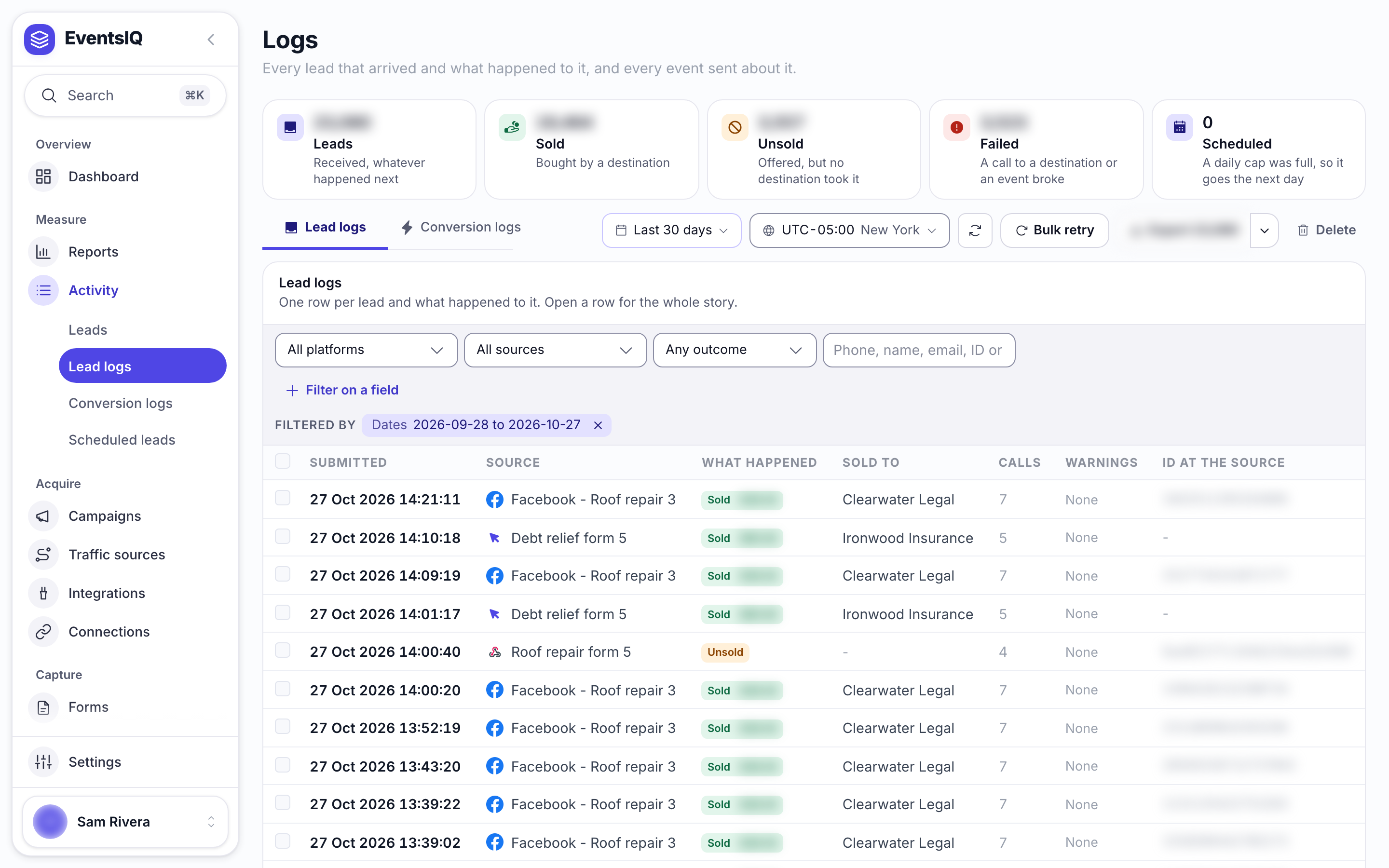
| Column | What it shows |
|---|---|
| Submitted | When the visitor submitted, in the time zone you picked |
| Source | The form or source it came from, with its network icon |
| Sale | Sold with the price, Unsold, Pending or Disqualified |
| Sold to | The destination that bought it |
| Postbacks | How many calls were made about it |
| Warnings | Anything worth a look, for example a field that failed to map |
| External ID | The network's own id for the lead, when it has one |
Filter by platform, source and outcome, search by phone, name, email or id, or click Filter on a field to match any answer.
Inside a lead
Click a row to open the lead. From the top:
- The outcome: who bought it and for how much, its source, when it was submitted and received, its Lead ID, its ID at the source and the form version.
- Answers: what this lead told you, under your field names after field mapping, which is what destinations receive.
- What happened, in order: every destination it was offered to and every event sent about it, with its status, the time it took and the reply. Open a line to see what was sent and what came back.
- The click it came from: for leads that came through a campaign link, the campaign, the link, when they clicked, how long they took to submit, roughly where they were and the click id. See How click tracking works.
- For developers, closed until you open it: the answers as JSON, exactly what arrived, the runtime data, the request details, the location, the URL parameters and the page values.
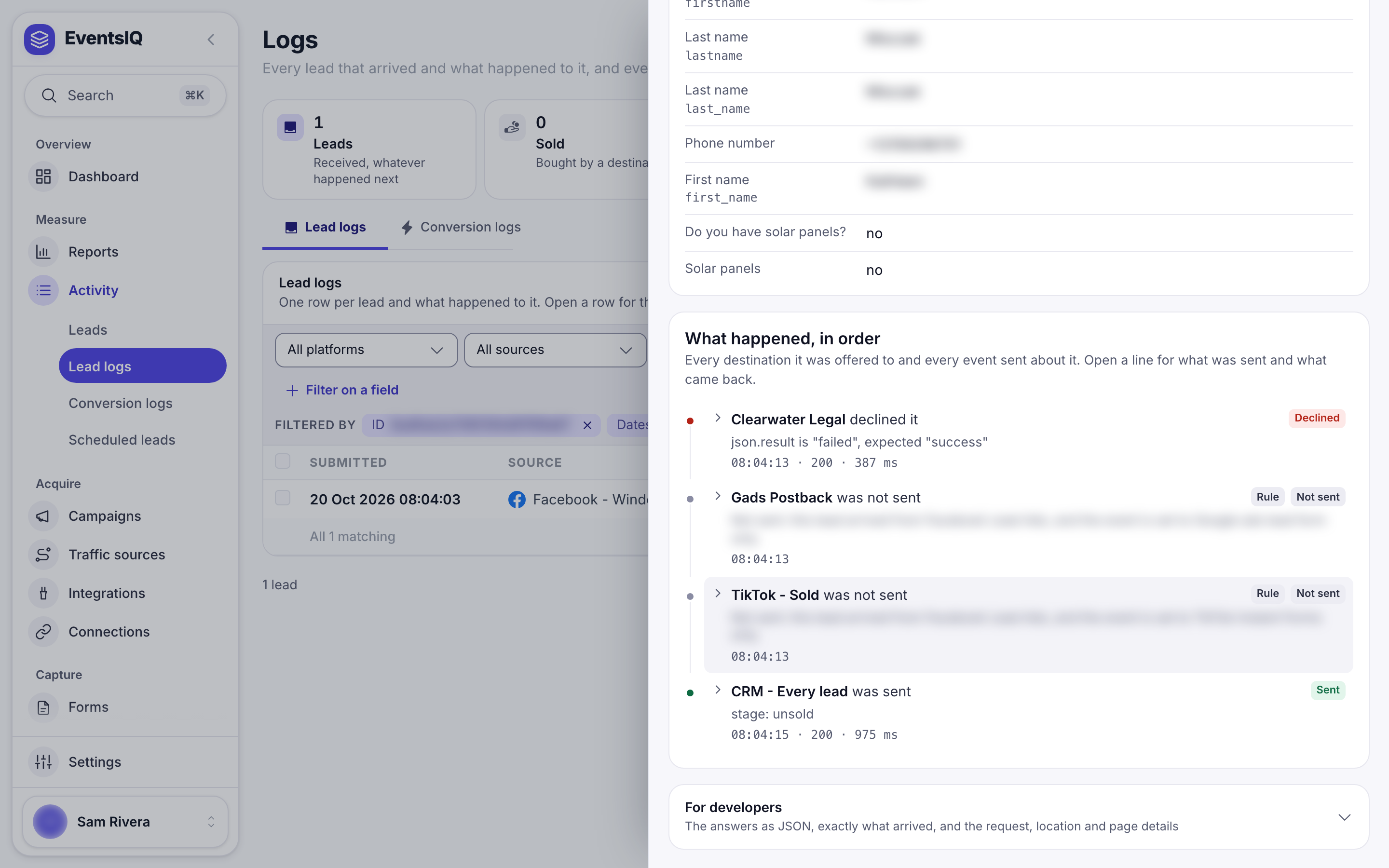
Events that were deliberately not sent show as Skipped with the reason, for example "this lead arrived from Google Ads lead form, and the event is set to EventsIQ form only". That is a rule doing its job, not a fault.
From a report to a lead
In Reports, click the list icon on any ad campaign row to see the leads behind it. Each lead there opens its log here, so you can go from "this campaign's ROAS dropped" to the exact leads that went unsold, and why.
Dropped submissions
When submissions were refused before they ever became leads, for example a bot caught by the honeypot or a malformed body, an amber bar above the table says how many. Click Show reasons to see why. The visitor saw the form succeed, deliberately, so a bot does not learn what stopped it.
Scheduled leads
A destination set to hold leads when its daily cap is full keeps them for its next day instead of losing them. Full means either the number you set, or the destination saying so itself: a reply turning a lead down with one of its cap words, cap to start with, as a whole word. Set the words under Also full when the destination replies with on the destination. After such a reply it gets no more leads until its next day starts; Send to it again on the destination undoes that. Scheduled leads, on Lead logs and on Leads, lists them.
- By day counts, per day and destination, how many were scheduled and how each ended: sold, declined, never sent, dropped as too old, or still waiting. Why declined shows the destination's own reason, such as Duplicate. Press any number or reason to list those leads.
- Send due leads now sends every waiting lead whose time has come and shows the progress as it goes: how many sent, sold and declined. It is safe while the scheduled job runs too: each lead is sent once, whoever starts the send.
- Filters narrow the list by destination, day and reason, and Export downloads it.
They are also sent on their own every 15 minutes, and an alert says when a destination's batch is done. See Notifications.
Conversion logs
Conversion logs show every conversion event, CRM event and postback, one row per call. Calls to destinations belong to Lead logs.
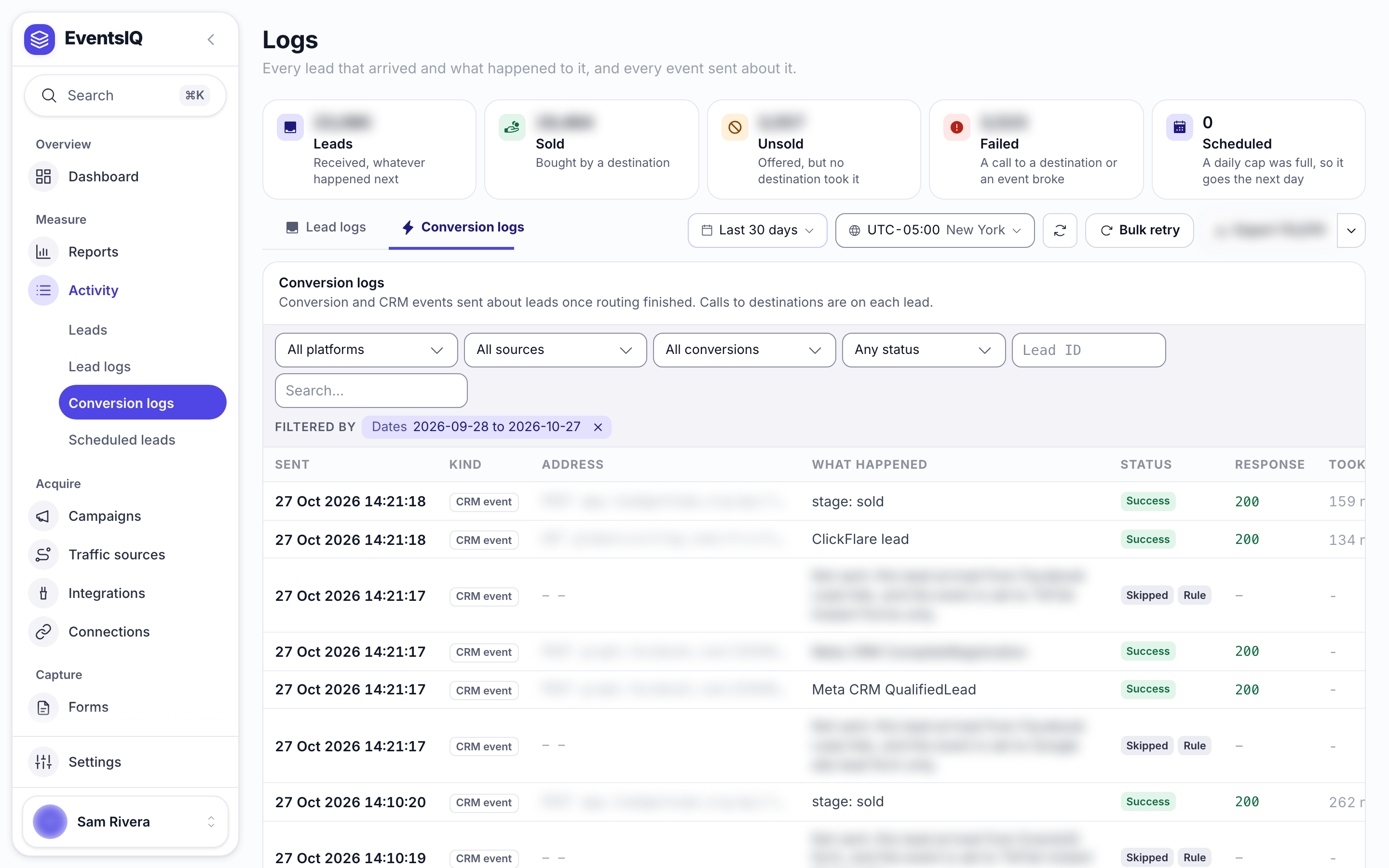
| Column | What it shows |
|---|---|
| Sent | When |
| Kind | Conversion event, CRM event or postback |
| Endpoint | Where it went |
| Outcome | What was sent, for example stage: converted |
| Status | See below |
| Response | The status code the network answered with |
| Duration | How long it took |
| Attempt | 1 for the first try, higher for retries |
Statuses
| Status | What it means |
|---|---|
| Success | The network accepted it |
| Failed | The network answered and refused it. The reply says why |
| Error | The call never got an answer, for example a timeout |
| Skipped | EventsIQ deliberately did not send it. The reason is on the row |
| Pending | Still being sent |
A skipped row also carries a badge saying what kind of reason it is:
| Badge | Meaning | Action |
|---|---|---|
| Setup | Something is not configured, for example an event with no mapping | Fix it |
| Rule | A rule you set said not to, or it was already reported | Usually nothing |
| Lead data | The lead is missing something the network needs, like a click id | Check the source |
Open a failed or errored row and click Retry this postback to send it again once the cause is fixed.
Related
- Postbacks: what each postback skip reason means.
- Routing: where waterfalls and events are set up.
- Notifications: being told about failures without watching this page.