Forms
Every kind of form, how to create one, the parts of the editor, and every setting.
A form is any way leads arrive in EventsIQ: a form you build and put on your own page, a lead form on an ad network, or an address another tool posts leads to. Every one of them sits on the same Forms page, runs its leads through a routing, and keeps every lead in Logs.
This page is the reference: the Forms list, making a form, every part of the form editor, and every setting. For a walk-through of your first website form from start to finish, see Your first website form.
The kinds of form
| Kind | Where people fill it in | How leads reach EventsIQ | Its own page |
|---|---|---|---|
| Website | A form you build here and embed on your page | The embed sends each lead | Your first website form |
| Facebook instant form | A Facebook or Instagram lead ad | Meta tells EventsIQ the moment a lead arrives | Facebook instant forms |
| TikTok instant form | A TikTok lead ad | TikTok sends each lead | TikTok instant forms |
| Google Ads lead form | A Google Ads lead form asset | Google posts each lead to your address | Google Ads lead forms |
| Snapchat lead form | A Snapchat lead ad | Snapchat sends each lead | Snapchat lead forms |
| Webhook | Any tool that can send a POST | The tool posts each lead to your address | Inbound webhook |
Only a website form is built in EventsIQ, so only a website form has the editor described below. The others are built on the ad network or in your own tool, and EventsIQ matches their answers to your fields.
The Forms list
Open Forms under Capture in the side menu.
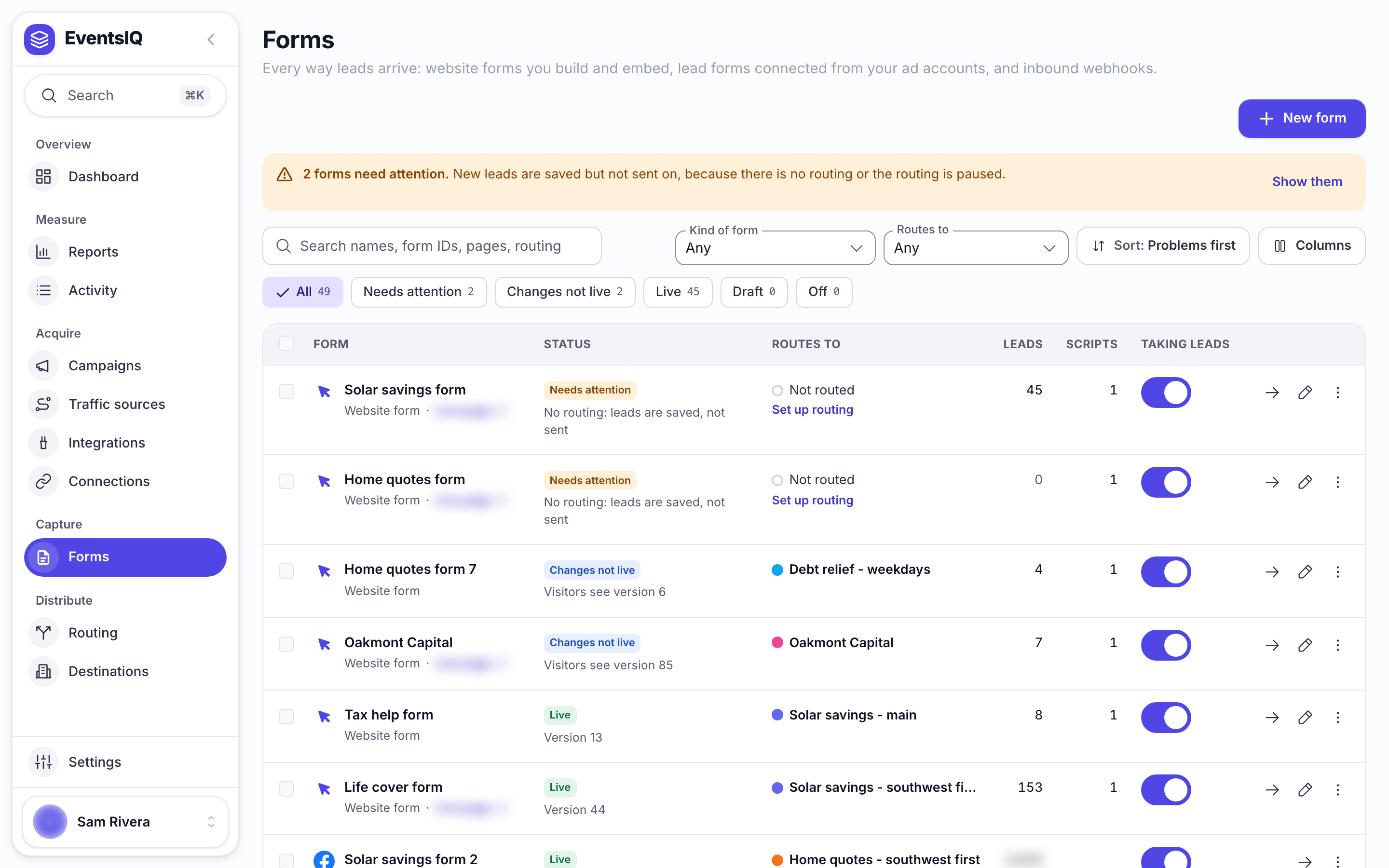
When a form takes leads but sends them nowhere, a banner at the top says so: 2 forms need attention, because there is no routing or the routing is paused. Show them filters the list to those forms. Their leads are still saved in Logs.
Finding a form
- Search looks through names, form IDs, pages and routing.
- Kind of form narrows the list to one or more kinds. Only the kinds you have are listed.
- Routes to shows the forms that use one routing, or Not routed.
- Sort puts Problems first by default. You can also sort by Name, A to Z, Most leads, Recently changed or Most scripts.
- Columns adds Fields matched and Updated, or hides Scripts.
The chips under the search count the forms in each state:
| Chip | What it means |
|---|---|
| Live | Taking leads. Under it, the version visitors see |
| Changes not live | A website form you have edited since it went live. Visitors still see the live version |
| Draft | A website form that has never gone live. Visitors see nothing |
| Needs attention | No routing, or the routing is paused: leads are saved but not sent |
| Off | Taking leads is switched off, so new leads are refused |
Each row
- Form: the name, its kind, and a Live page link once you have said where it is used.
- Status: one of the states above.
- Routes to: the routing, with Paused under it when it is paused, or Set up routing.
- Leads and Scripts: how many leads it has taken, and how many scripts load with it.
- Taking leads: switch it off and the form refuses new leads straight away. Nothing is deleted.
The arrow opens the form's page and the pencil opens the editor (website forms only). The ⋮ menu holds Open, Edit, Open routing, View leads, Open live page, Copy form ID, Duplicate and Delete.
Tick several rows to switch them on or off together, or to delete them. A form that is still in a routing cannot be deleted: take it out of the routing first. The delete window says which forms were skipped for that reason.
Making a form
Press New form. The steps depend on the kind:
- Website: Basics and starting point, then Where leads go. The form is made as a Draft.
- Every other kind: Basics, Where leads go, then Connect and match.
Basics
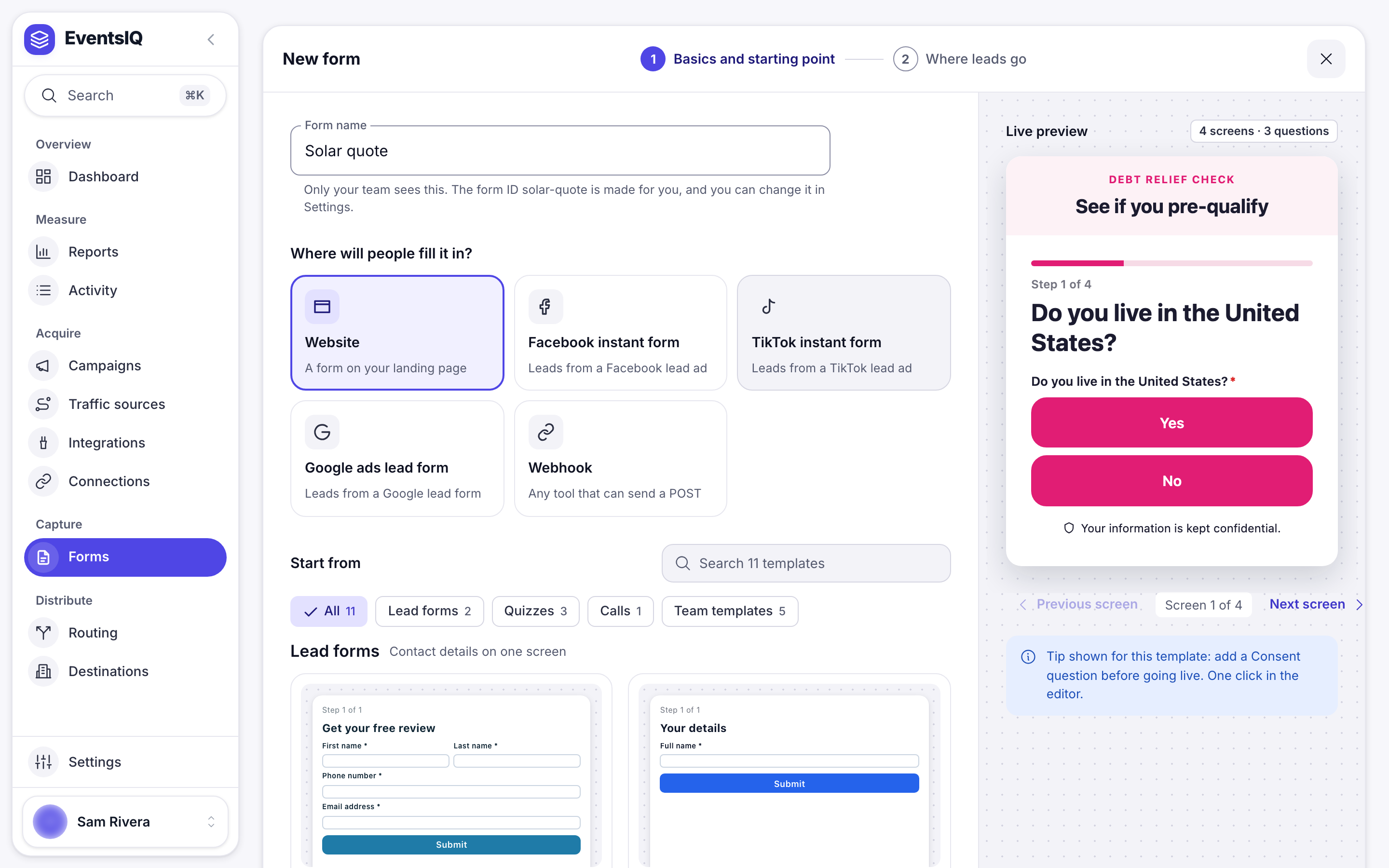
- Form name is for your team. Visitors never see it. EventsIQ makes the form ID from it, and you can change the ID in Settings until the form first goes live.
- Where will people fill it in? picks the kind: Website, Facebook instant form, TikTok instant form, Snapchat lead form, Google Ads lead form or Webhook.
- Start from (website only) is a gallery of complete forms to edit down. The chips narrow it to Lead forms, Quizzes, Calls or Team templates, and each card says how many screens and questions it has. Simple lead form comes first, marked Recommended; Blank form is second.
Where leads go
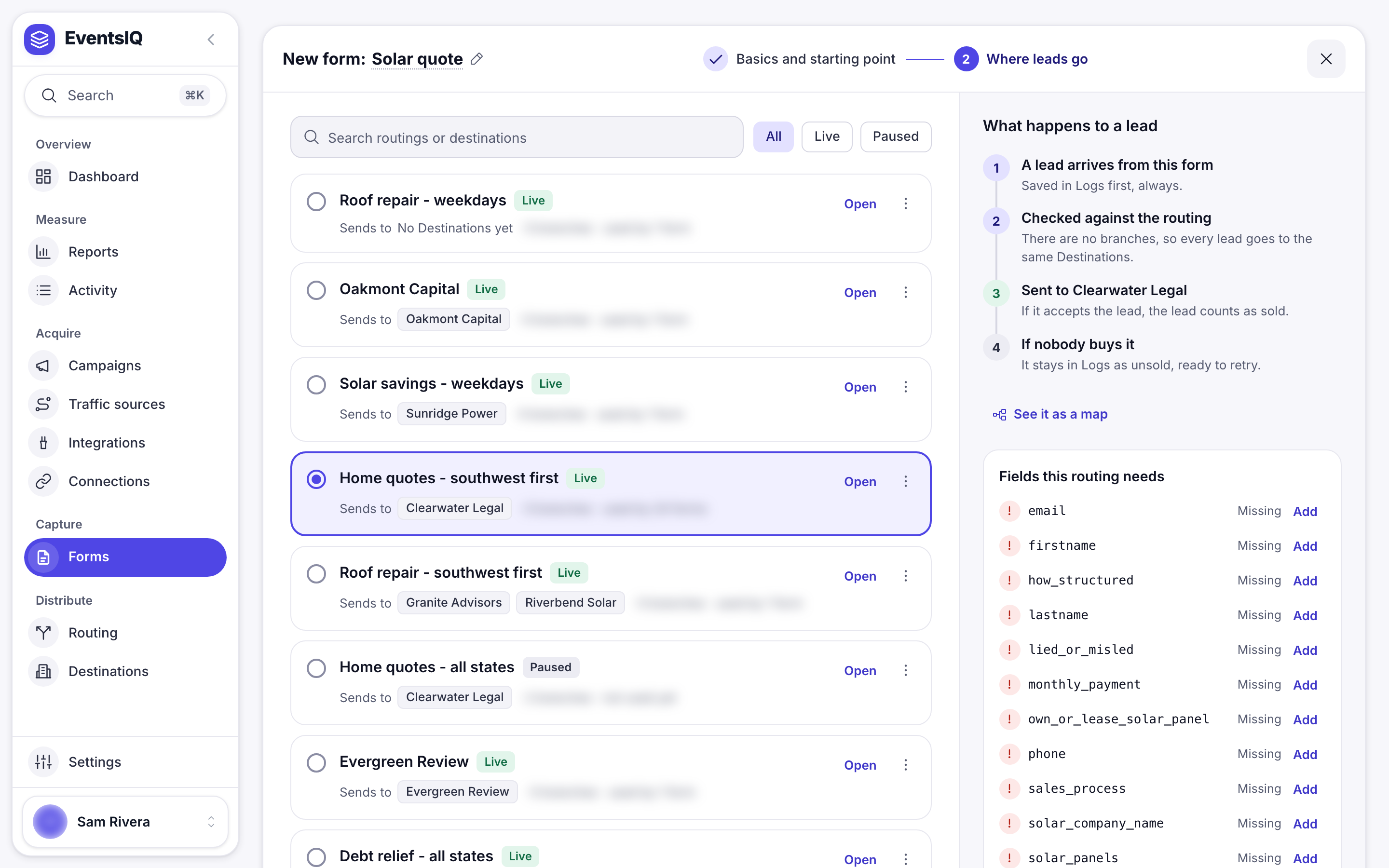
Pick the routing this form's leads run through. What happens to a lead beside it walks the path in words, and See it as a map draws it. New routing and Start from a copy open the routing builder over this step and bring you back with the new routing picked.
For a website form, Fields this routing needs lists anything a destination or preset reads that the template does not ask for, marked Missing. Add puts the question in the form, and Add all does them all at once.
Decide later skips this step. The form still takes leads and saves them in Logs, but sends them nowhere until you pick a routing.
Connect and match
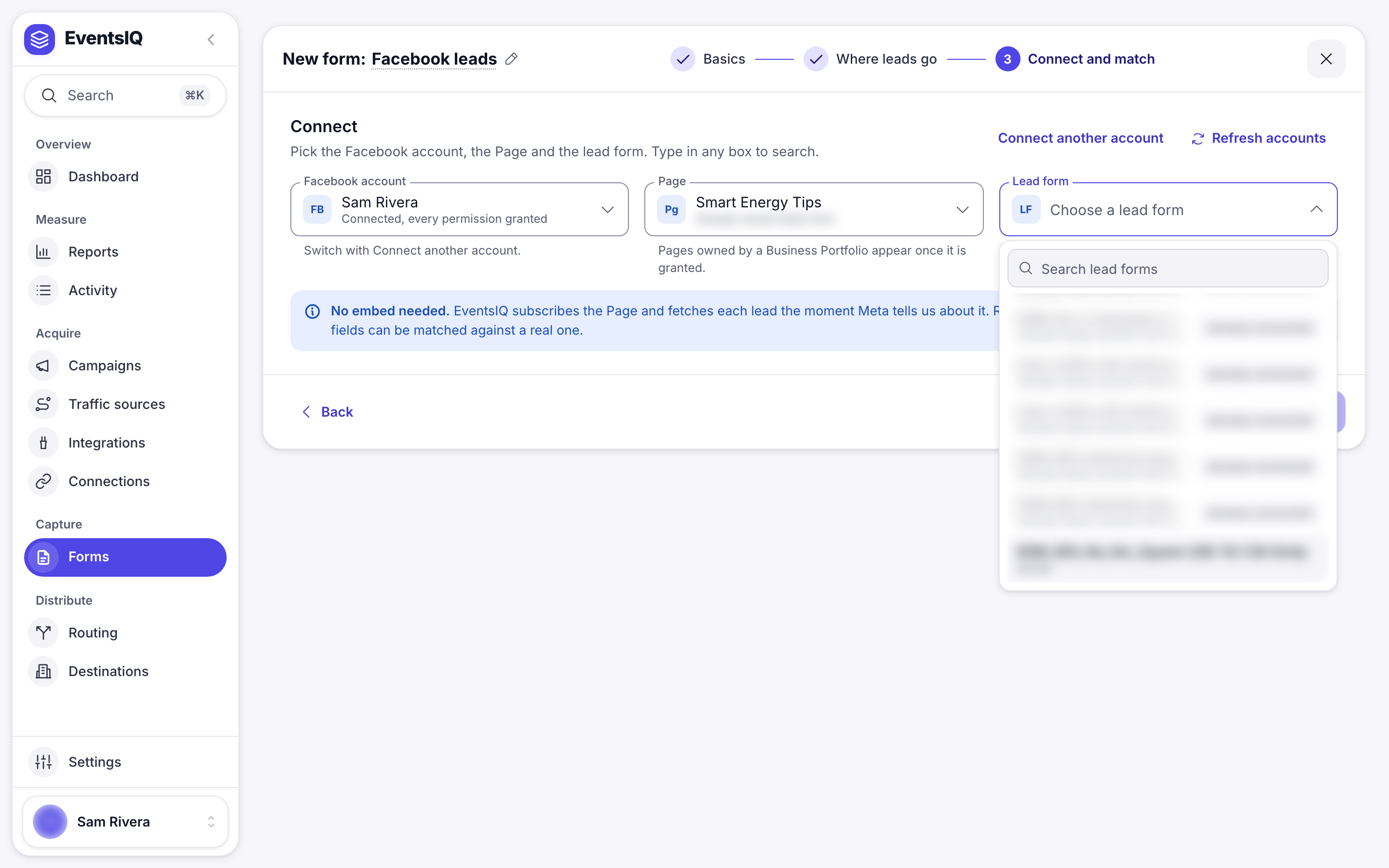
For the ad network kinds, pick the account and the lead form, then match the network's questions to your fields. Do it for me matches everything it can by name, and Match the rest later lets you finish on the form's own page. A webhook gives you its address and signing secret here instead. Each kind's page explains this step in full.
The website form editor
Press Open the editor at the end of New form, or the pencil on the Forms list.
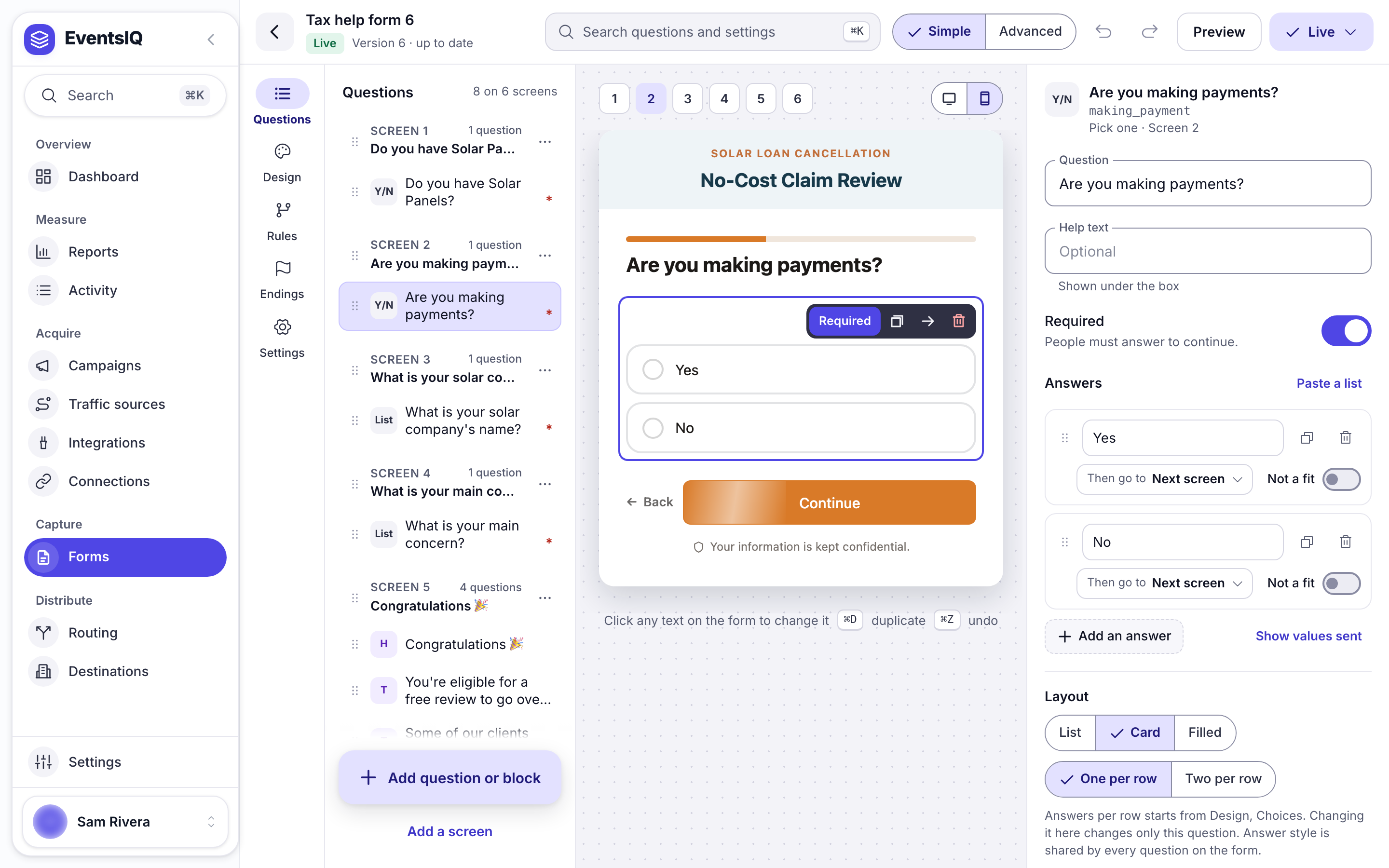
The top bar
- Back to forms, then the form's name (click it to rename) and its status: Draft, Live, or Live with 2 changes not live yet. Beside it, whether your last change is saved.
- Search questions and settings (⌘K) finds any question, screen or setting and takes you to it.
- Simple and Advanced switch the editor's mode. See below.
- Undo and Redo.
- Preview lets you try the form, rules included. Answers given in preview are not saved.
- Go live, which becomes Live once the form is live, or Update live form when you have changes. Its menu holds Put it on your page, Versions and Take offline.
Down the left are the editor's pages: Questions, Design, Rules, Endings and Settings. The middle shows the form exactly as visitors will see it, with Desktop and Phone to switch the width.
Simple and Advanced
Both modes edit the same form, and you can switch at any time without losing anything. The editor remembers the mode you used last.
- Simple shows the everyday settings. Most forms never need anything else.
- Advanced replaces Questions with Layers, adds a Developer page, and gives each selected part Settings, Style and Developer tabs, with every style setting. It also allows Raw HTML blocks.
Questions and screens
A form is a run of screens, and each screen holds questions and blocks. The Questions page lists them screen by screen. Click anything on the form to select it, or double-click a question, heading or button to change its words in place.
Each screen's ⋮ menu holds Open screen settings, Rename, Duplicate, Add a screen after this and Delete screen. Add a screen at the bottom adds a Question screen, or a Loading screen that shows a few lines in turn and moves on by itself. Hidden fields are kept together in one row, Filled in by themselves.
Adding questions and blocks
Add question or block, or the / key, opens a searchable list of everything you can add.
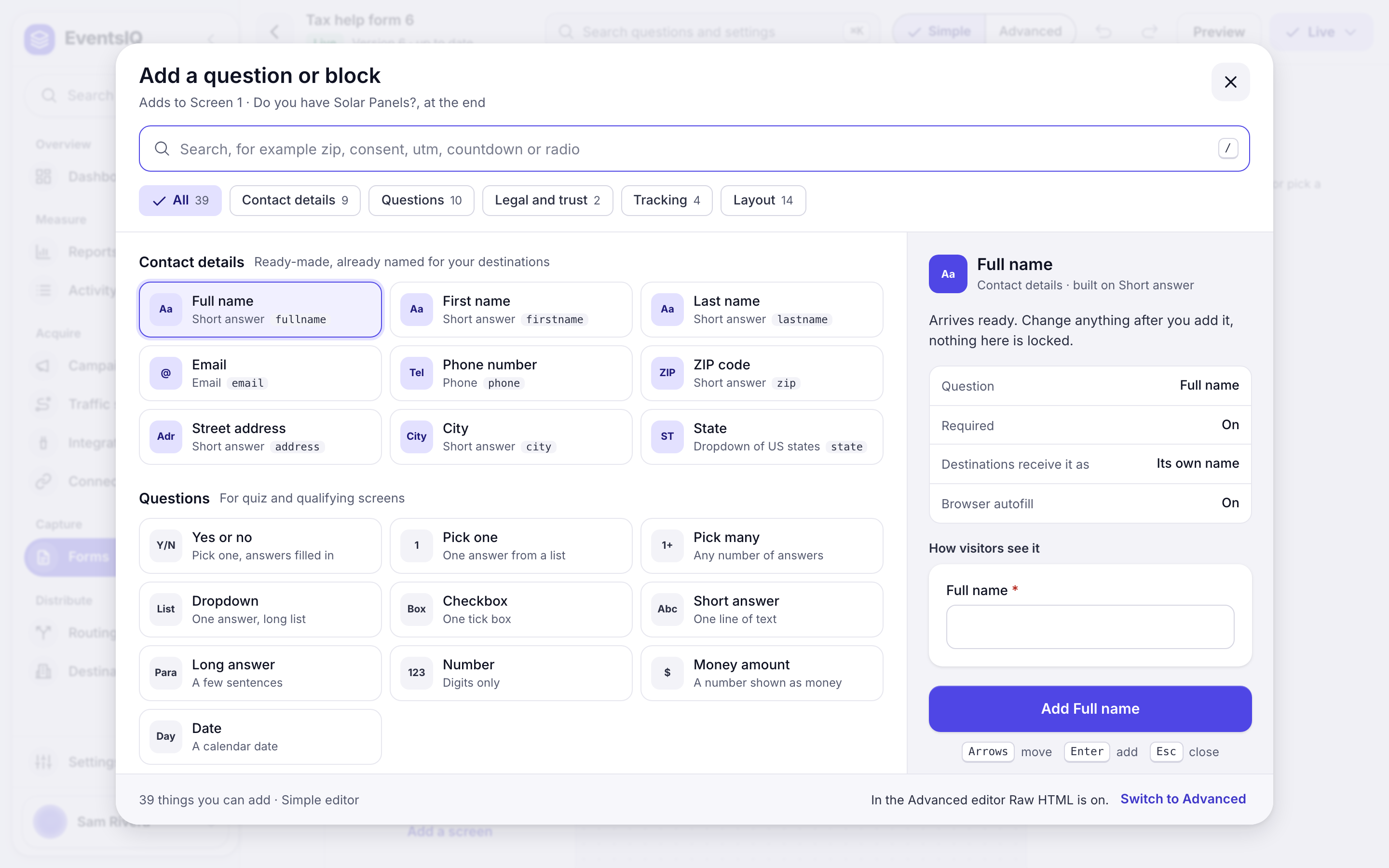
| Group | What is in it |
|---|---|
| Contact details | Full name, First name, Last name, Email, Phone number, ZIP code, Street address, City and State. Each arrives required and already named the way destinations expect |
| Questions | Yes or no, Pick one, Pick many, Dropdown, Checkbox, Short answer, Long answer, Number, Money amount and Date |
| Legal and trust | Consent, with starter wording that uses your company name and privacy link, and a hidden TrustedForm certificate |
| Tracking | Hidden fields visitors never see: Click ID, UTM tags (five fields at once), Landing page URL, and a custom hidden field |
| Layout | Things to show, never sent to a destination: Group, Heading, Text, Rich text, Button, Image, Loading, Countdown, Divider, Spacer and Raw HTML |
The side of the window shows how the selected item arrives: its question, whether it is required, and what destinations receive it as. Nothing is locked: change anything once it is on the form.
A question's settings
Select a question and its settings open on the right.
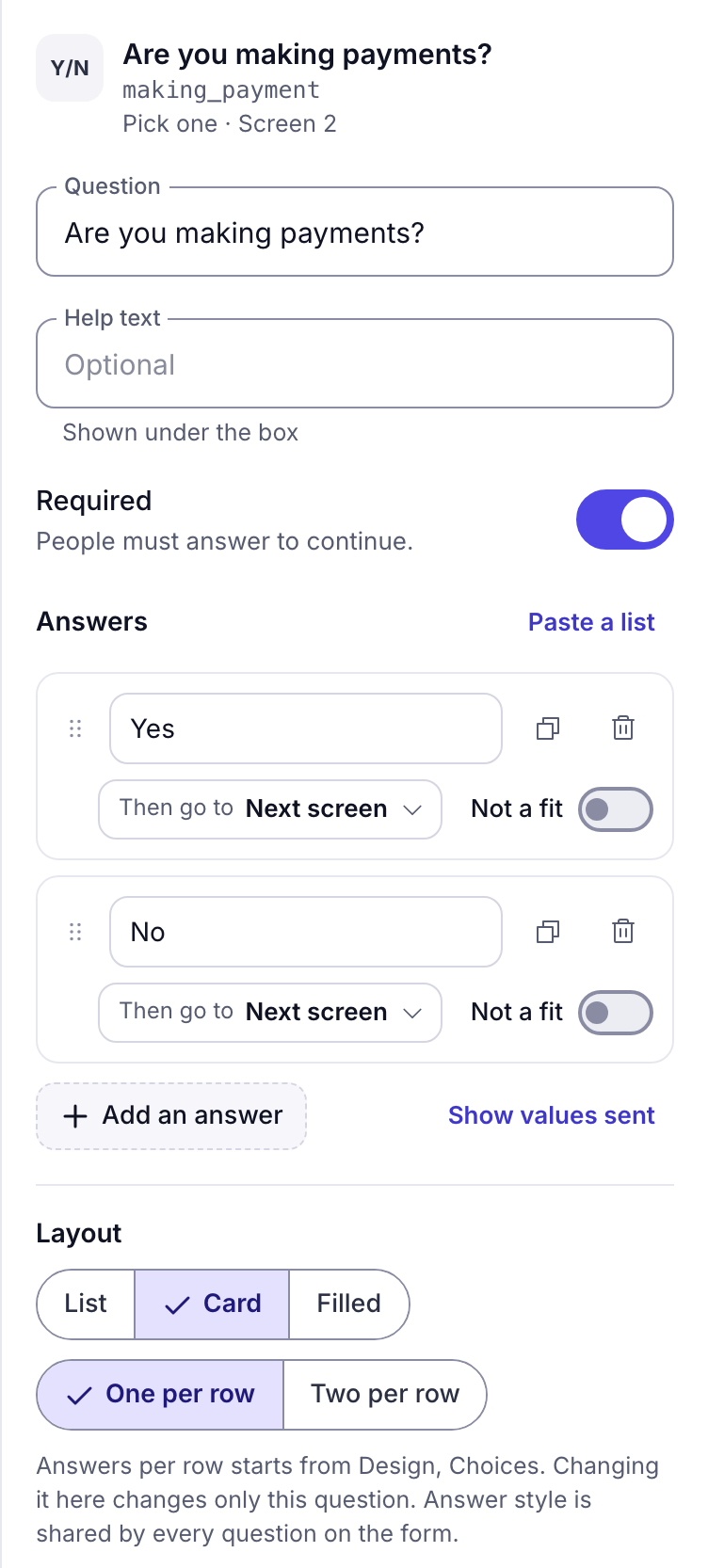
- Question, Help text and Required are on every question. A phone question also has Format as they type, and a consent question has Consent wording.
- Answers, on a choice question, lists each answer. Then go to sends people to another screen, and Not a fit ends the form there. Paste a list adds many answers at once.
- Layout, on Pick one and Pick many, chooses List, Card or Filled answers, one or two per row. A Pick one question can also Move on by itself as soon as an answer is picked.
- Destinations receive it as is the standard field the answer fills, such as
phone. Every destination, preset and event that reads that field finds it. See Fields. - More options holds the placeholder, a starting value, the shortest and longest answer (or smallest and largest number), a custom error message, and hiding the required mark.
- Look of this question hides the label or sets the width of the box.
A hidden field instead shows its Name, and Where the value comes from: a starting value, a tracking value or URL parameter with the same name, or a script on the page.
Selecting a button shows When tapped (Continue, Go back, Go to a screen, Submit now or Mark as Not a fit) and its style.
A screen's settings
Pick Open screen settings in a screen's menu.
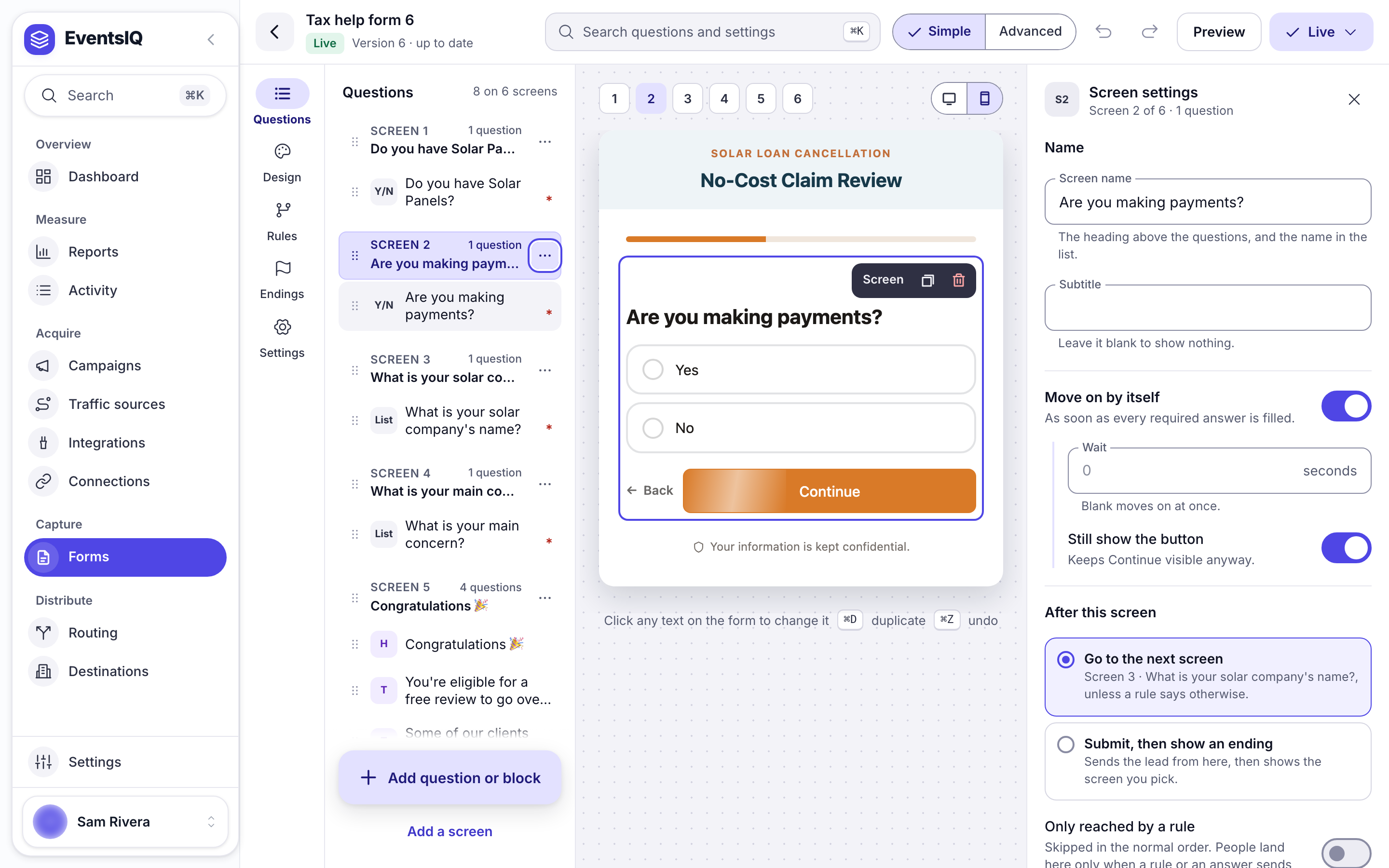
- Screen name and Subtitle: the heading above the questions.
- Move on by itself continues as soon as every required answer is filled in, after the Wait you set. Still show the button keeps Continue visible anyway.
- After this screen: Go to the next screen, or Submit, then show an ending. A screen that submits is where the form ends for people who reach it.
- Only reached by a rule takes the screen out of the normal order, so people land on it only when a rule or an answer sends them there. This is how one form has several outcomes.
- What this screen shows turns the bands, progress bar, back link, step number and buttons on or off for this screen, and sets the button position.
Design
Design sets the look of the whole form, on every screen.
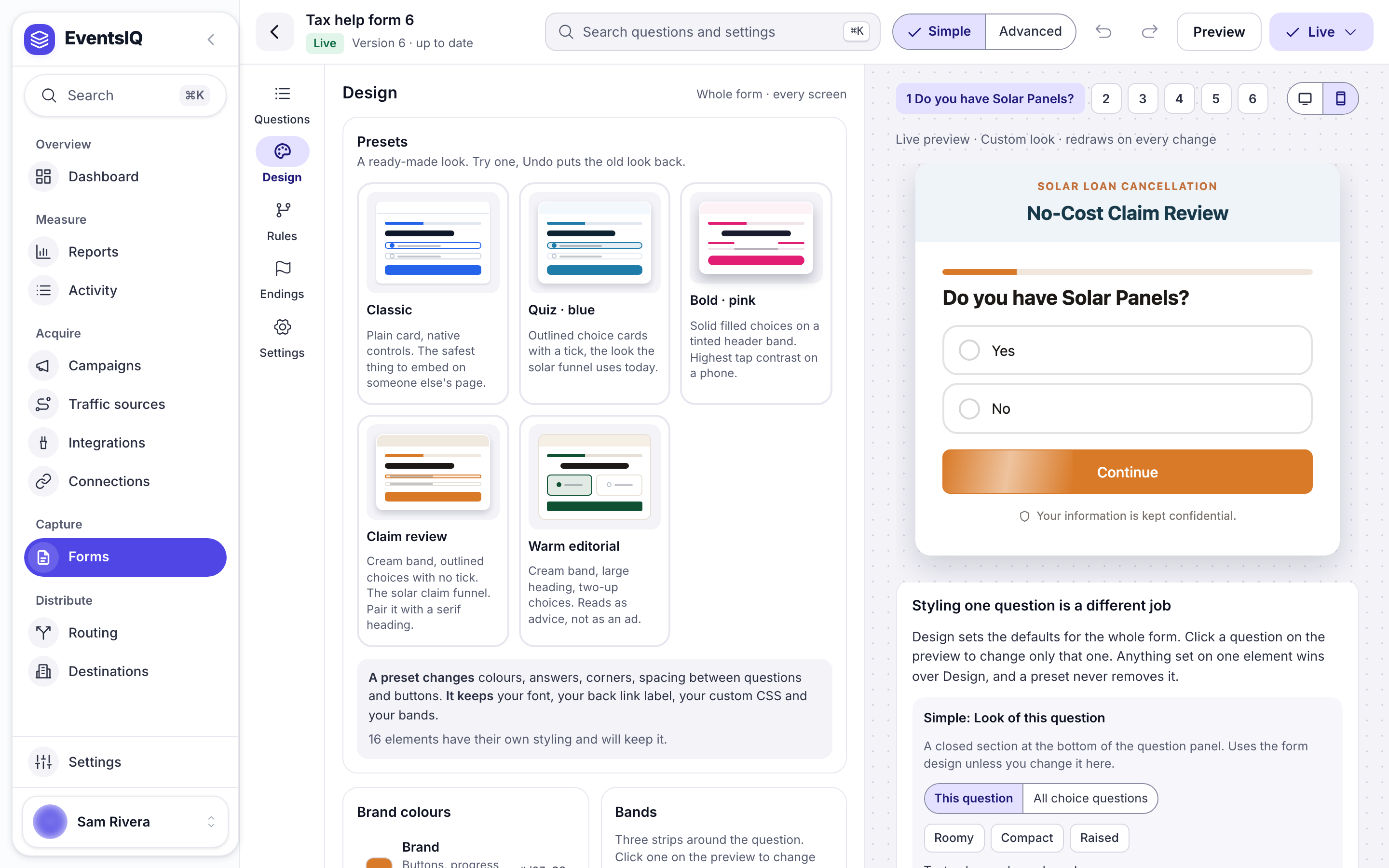
| Section | What it sets |
|---|---|
| Presets | A ready-made look: Classic, Quiz · blue, Bold · pink, Claim review or Warm editorial. Undo puts the old look back |
| Brand colours | Brand, Accent, Highlight, Text, Card and Band |
| Bands | Strips around the question: Header, Above the question and Footer, each with its colour and contents |
| Type | The font, and the size of questions and body text |
| Shape | Corners, shadow and card padding |
| Density | Compact, Normal or Roomy |
| Choices | How answers are drawn: List, Card or Filled, one or two per row |
| Buttons | Solid, Outline or Soft |
| Back link look | Where the back link sits, or Hidden, and its words |
Choices is the setting that most changes how a form performs. Card makes the whole answer tappable with a drawn tick, which on a phone is often the difference between a funnel that converts and one that does not. List is the default, and the better choice for long lists.
A preset changes colours, answers, corners, spacing and buttons. It keeps your font, back link words, custom CSS and bands. To style one question differently, click it on the form.
Rules
A form with several screens is a funnel, and rules decide where each visitor goes next. The Rules page lists every rule as a sentence, grouped by the screen it runs on.
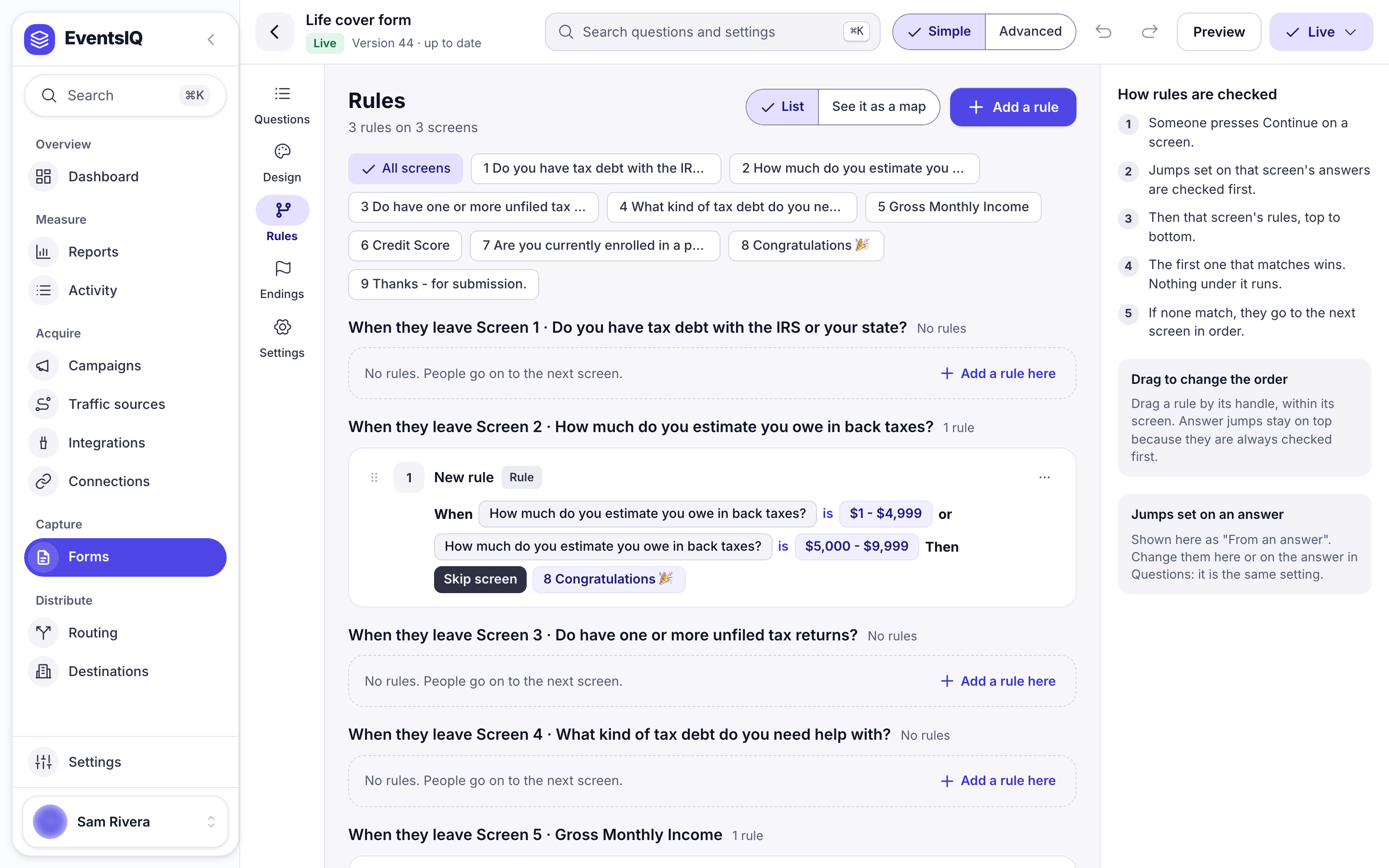
When someone presses Continue, EventsIQ checks in this order, and the first match wins:
- The answer they picked: any Then go to or Not a fit set on that answer. These show first under each screen, tagged From an answer.
- That screen's rules, top to bottom.
- The next screen in order, if nothing above matched.
Add a rule at the top, or Add a rule here beside a screen, makes a rule. Each rule has a name, When all or any of its checks are true, and Then one of: Go to screen, Skip screen, End with Not a fit or Submit now. A check can read any answer from any earlier screen and compare it with is, is not, contains, does not contain, is more than, is at least, is less than, is at most, is one of, is not one of, was answered or was not answered.
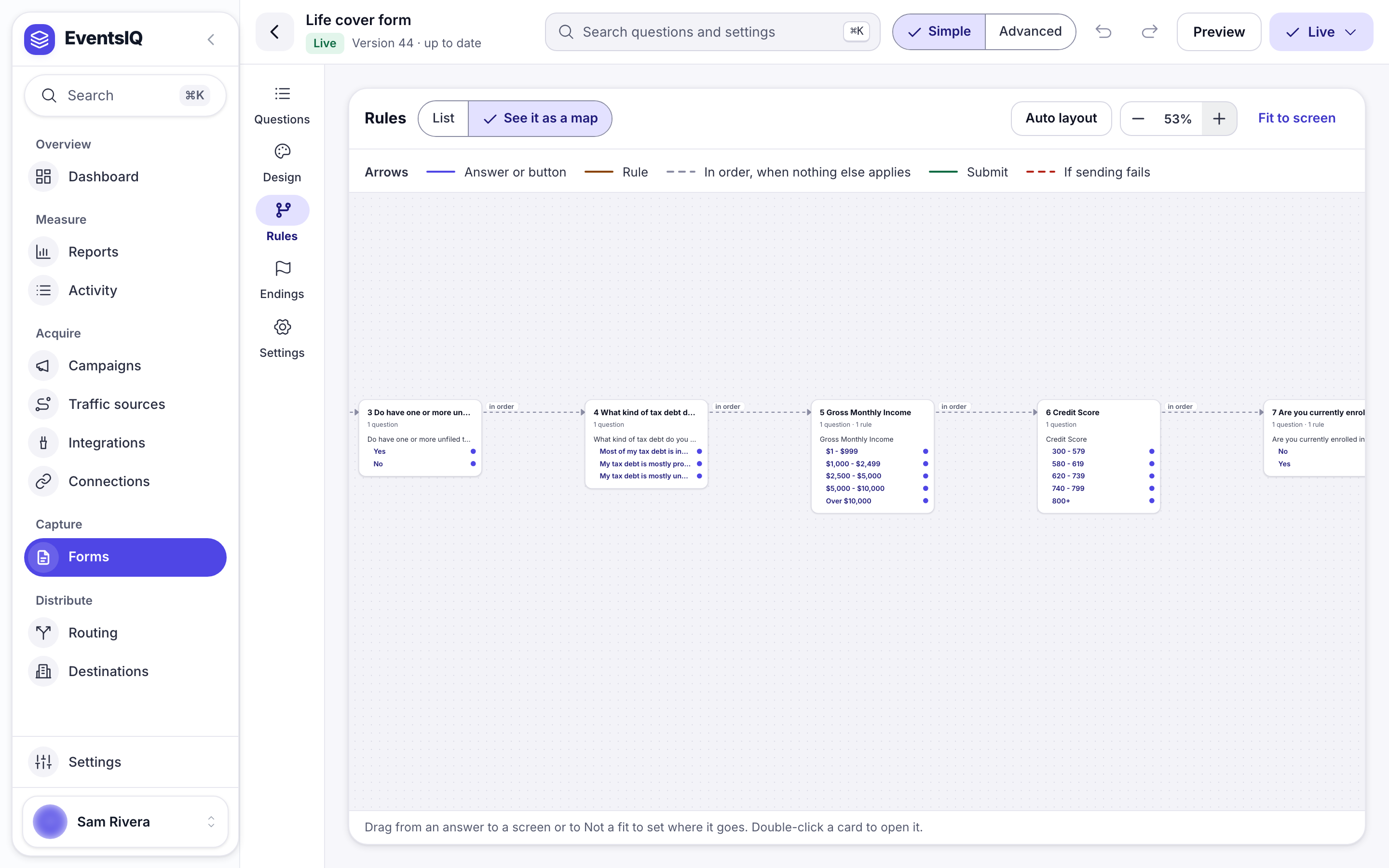
See it as a map draws the whole flow. The arrows show what moves people on: an answer or button, a rule, plain order, submitting, or sending failing. A screen that nothing leads to, or that has no way on, is flagged. Drag from an answer to a screen to set where it goes.
Endings
Endings is the one place for what people see when the form is over, and what happens to their lead.
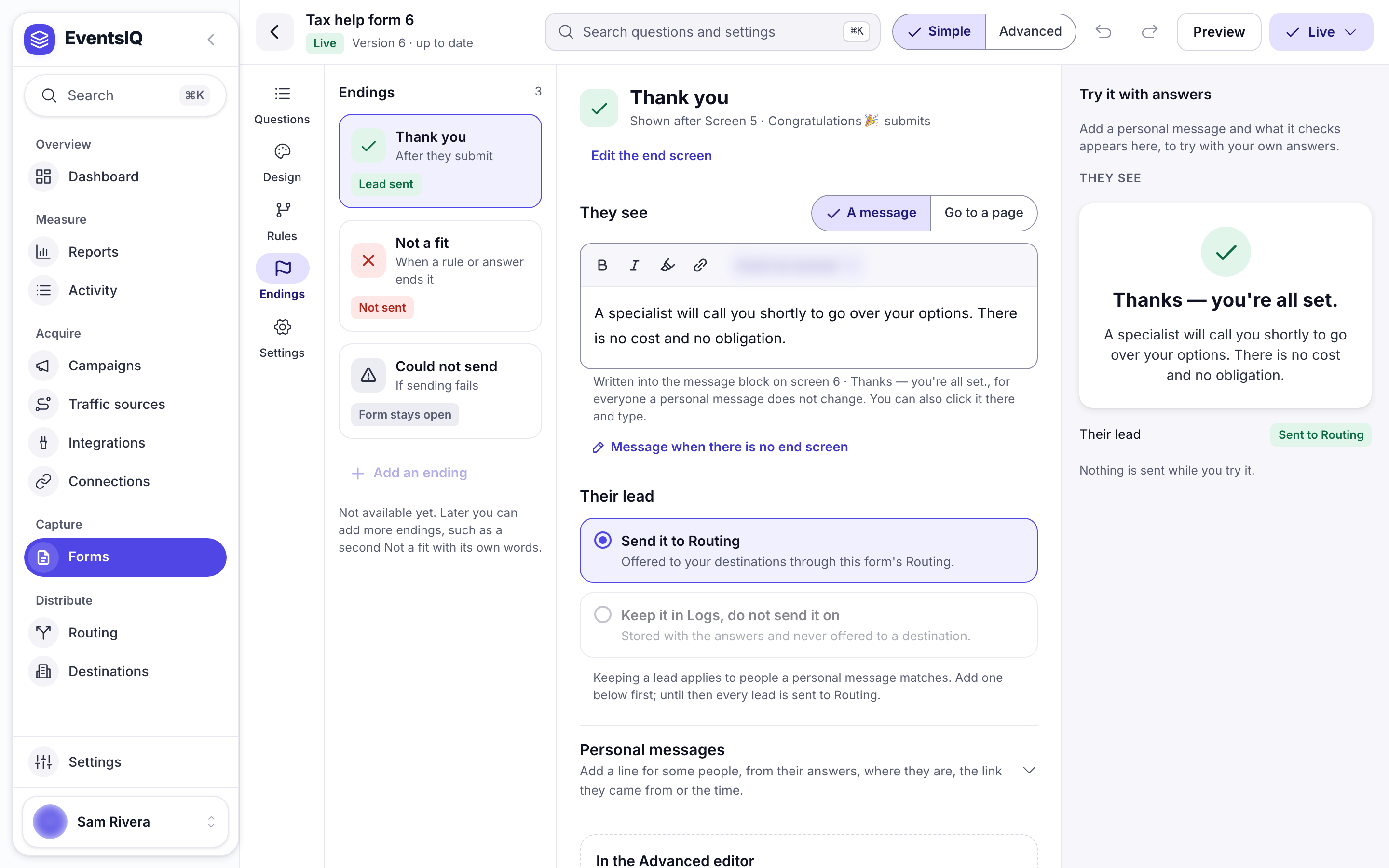
| Ending | When | The lead |
|---|---|---|
| Thank you | After they submit | Sent to the routing, unless you choose Keep it in Logs, do not send it on |
| Not a fit | When an answer, rule or button ends it | Not sent. Reached by lists every way in |
| Could not send | When sending fails | The form stays open so they can try again |
Thank you shows A message, or sends them to a page with Go to a page. Add to the link passes their answers, click IDs or page values on to that page.
Personal messages, on Thank you and Not a fit, show a different message to different people. Each one matches on an answer, their location, a URL parameter, click data, the time of day or the day of the week.
Settings
Settings is one page with a section for each job.
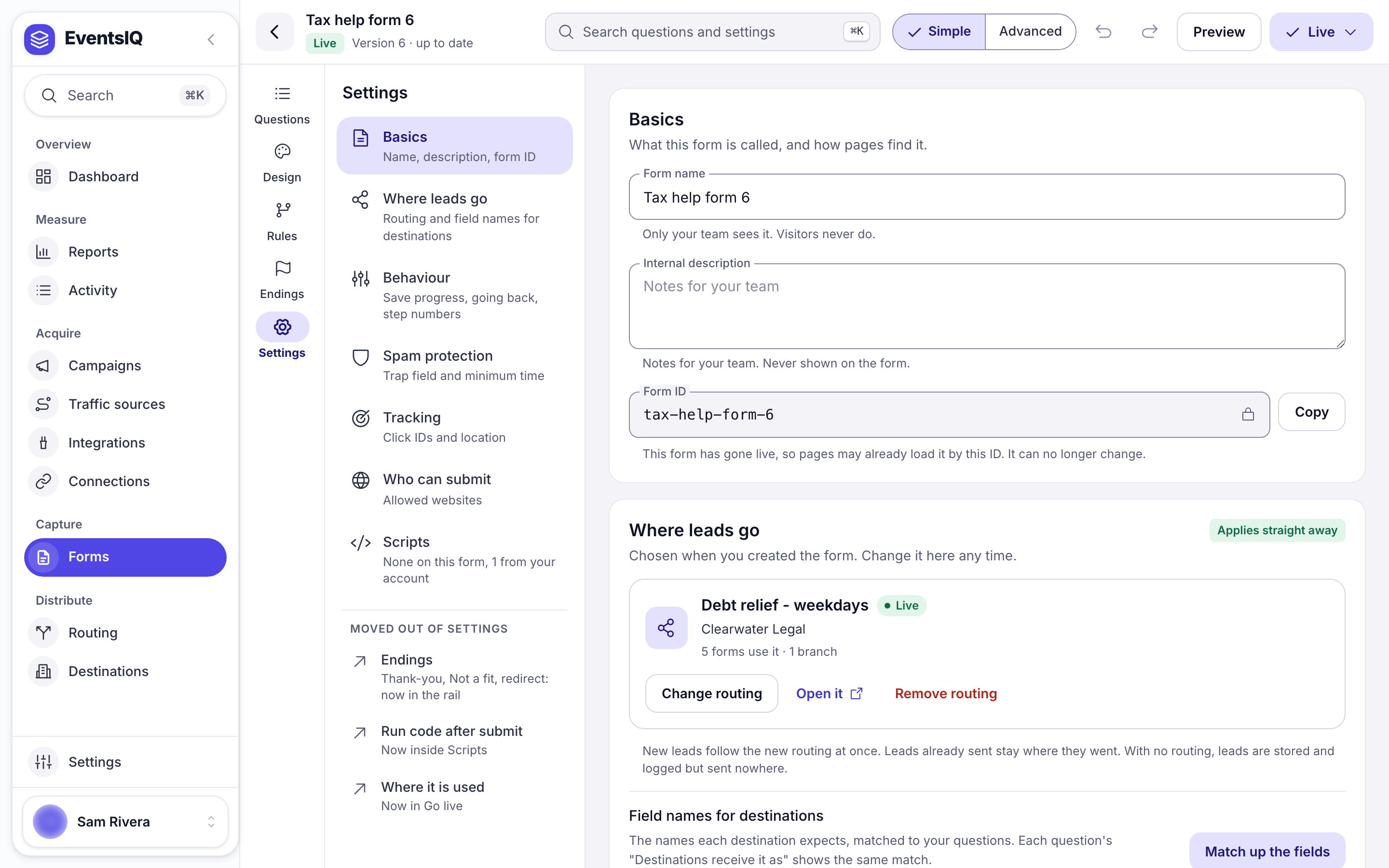
| Section | What is in it |
|---|---|
| Basics | Form name, an Internal description for your team, and the Form ID |
| Where leads go | The routing, with Change routing, Open it and Remove routing, and Field names for destinations |
| Behaviour | Save progress so people can come back, Allow going back and Show step numbers |
| Spam protection | A Hidden trap field bots fill in, and a Minimum time to finish. Both are checked on our server |
| Tracking | Extra click ID names, and looking up the full location before the lead is sent (adds up to 2 seconds) |
| Who can submit | The websites allowed to send leads with this form. An empty list allows any website |
| Scripts | Scripts on this form, the account's form scripts that also load here, and Run code after submit |
A routing change applies straight away, to the next lead. It does not wait for Update live form.
The Form ID is the key the embed uses to find the form, so it ends up in your page's code. You can change it in Basics until the form first goes live. After that it is locked, because changing it would break every page the form is on.
Scripts that many forms share, such as TrustedForm or Google Tag Manager, are set up once under Settings → Delivery and tracking → Form scripts. See Form scripts.
Advanced: Layers and Developer
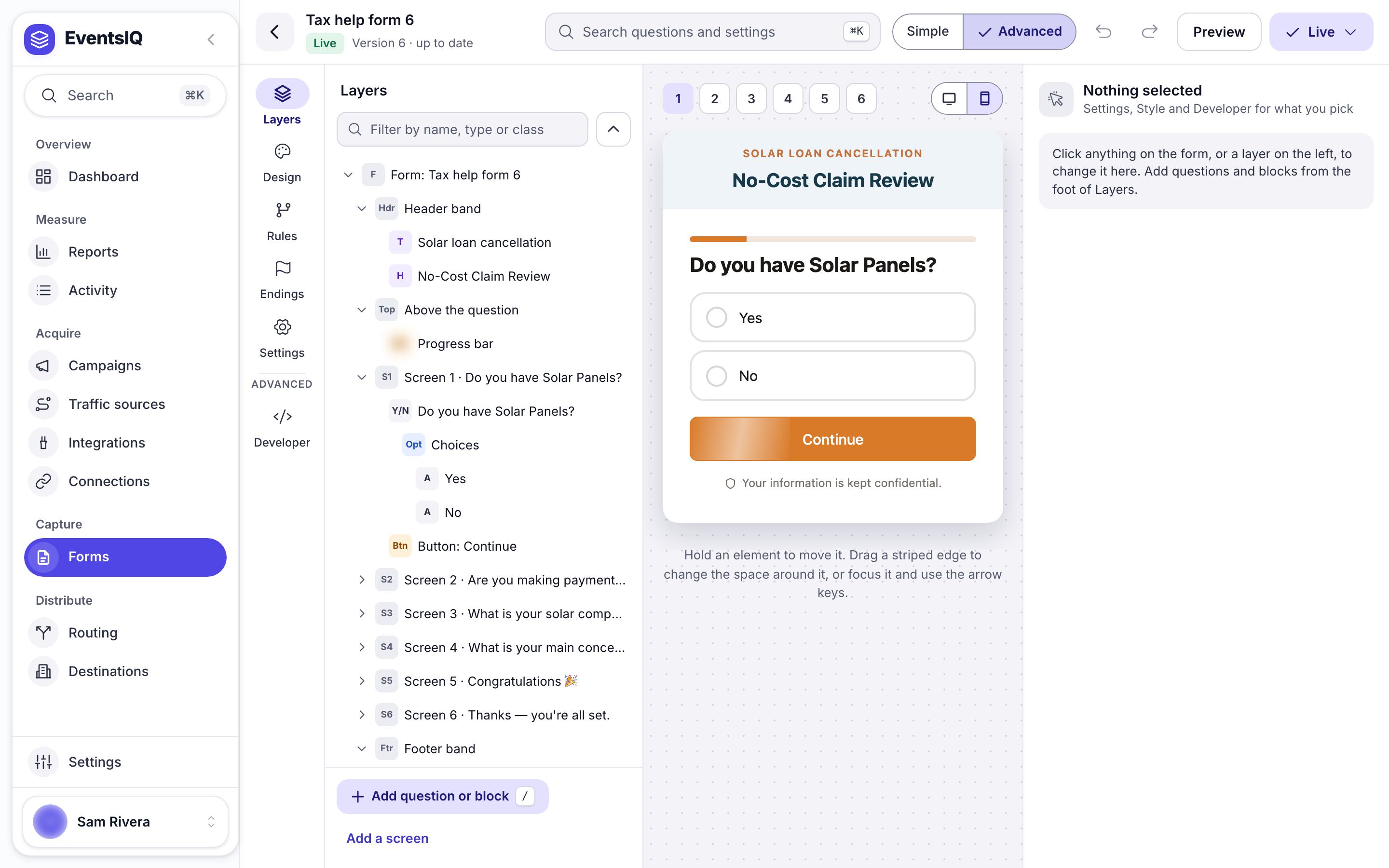
- Layers is the whole form as a tree: bands, screens, questions, answers and buttons. Filter it by name, right-click a layer to rename, hide or lock it, and shift-click several to group them, move them to another screen, or copy and paste a style.
- Developer holds Custom CSS, Raw HTML blocks, which page elements to hide around the form, Screen keys, Page values (one form saying something different on each page), and the keyboard shortcuts.
Going live
A website form has two copies: the draft you edit, and the live form visitors see. Everything in the editor changes the draft.
- Go live checks the draft in four groups: Questions, Consent, Where leads go and Put it on your page. Must fix stops the form going live; Worth a look is your call. Fix takes you to the right place.
- Update live form lists your changes, then makes them live. Until you press it, visitors keep seeing the live copy.
- Versions keeps a copy of every version that went live. Open shows one, and Restore as draft copies it into your draft as a single step you can undo.
- Take offline, in the Live menu, stops new leads. Nothing is deleted, and it frees one of the live forms on your plan.
- Put it on your page gives you the code to paste, a test link, and Where it is used, the list of pages the form is on.
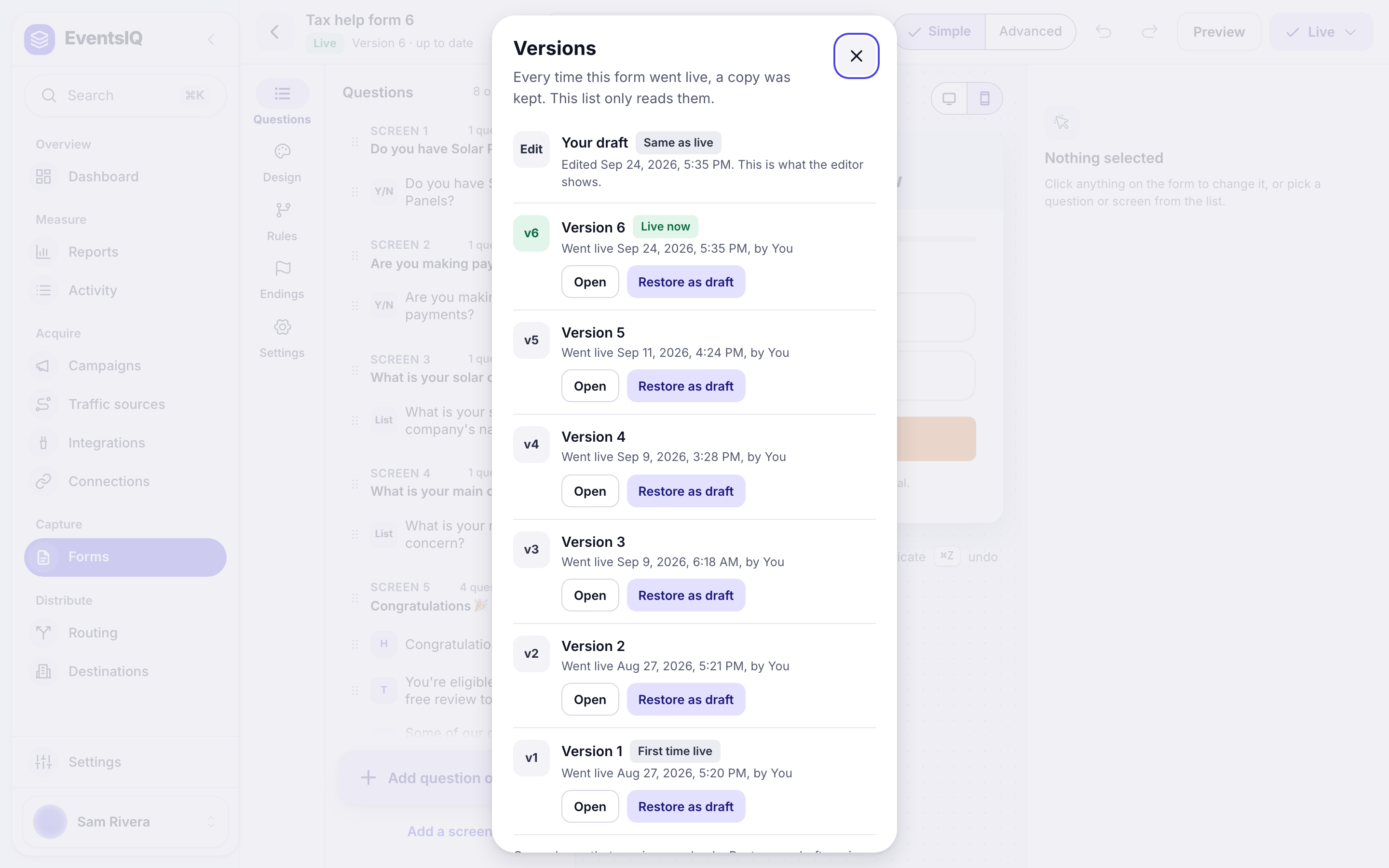
Your first website form walks through going live and embedding step by step.
The page for other kinds of form
A Facebook, TikTok, Snapchat, Google Ads or webhook form opens on its own page instead of the editor.
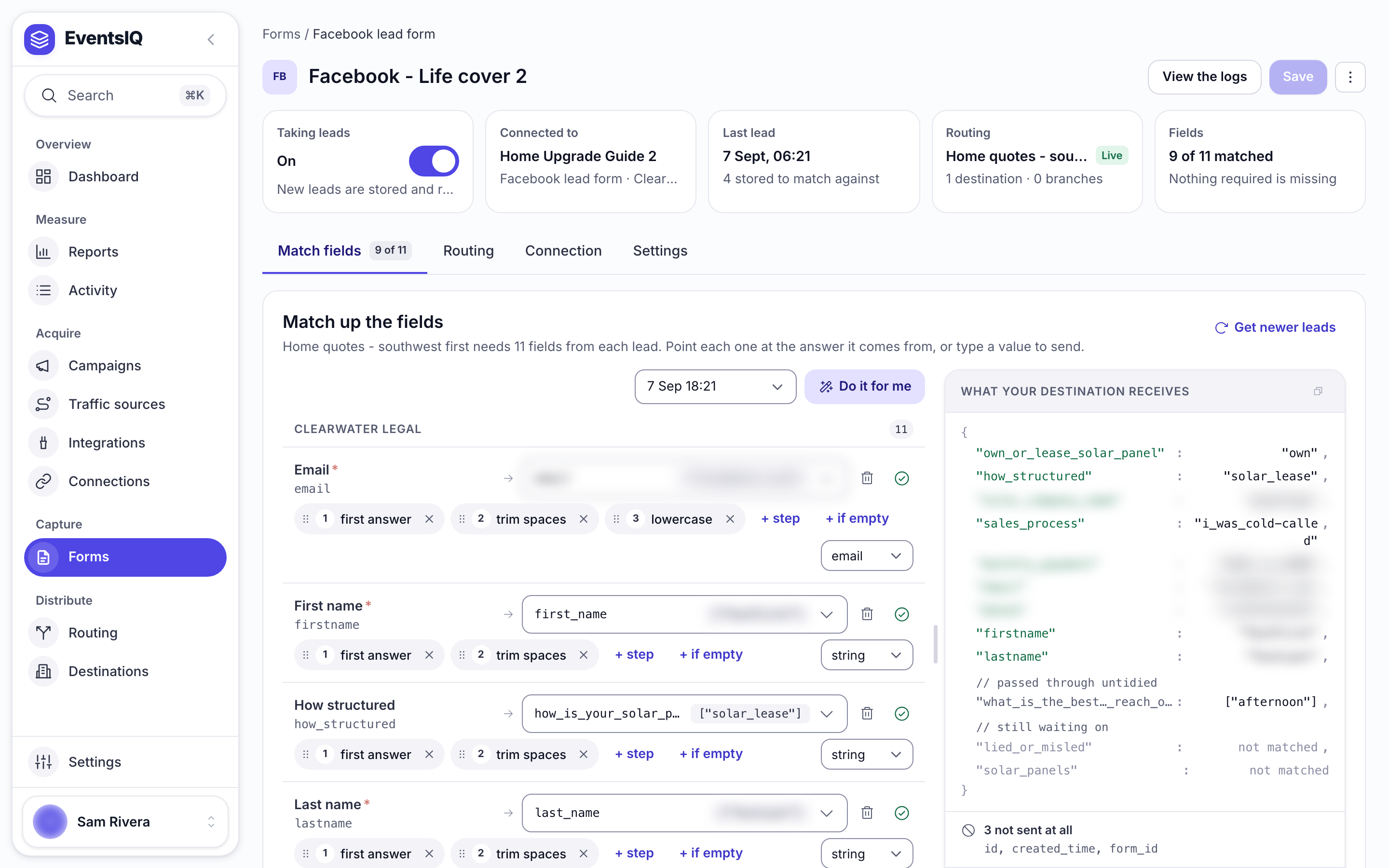
Along the top: Taking leads, what it is Connected to, the Last lead, its Routing, and how many Fields are matched. View the logs opens its leads.
| Tab | What is on it |
|---|---|
| Match fields | Each of the network's questions matched to your fields. Do it for me matches what it can by name |
| Routing | Where the leads go: Open the routing, Change routing or Take out of routing |
| Connection | The account it comes through, or for Google and webhooks the address and key to paste |
| Settings | The name, Taking leads, whether to send answers you have not named, Duplicate this source and Delete this source |
Related
- Your first website form: building, publishing and embedding one, step by step.
- Fields: the standard fields your questions fill.
- Routing: where a form's leads go.
- Logs: every lead a form took, and what happened to it.