Campaigns
The link that goes in the ad: forms, landing pages, rules, split tests and the tracking URL.
A campaign is one run of paid traffic. It ties together a traffic source, the form its ads lead to, the landing page that form is on, and the link that goes in the ad. Every click and every lead it produces carries the campaign's id, which is how Reports knows what each campaign spent and earned.
You'll find them under Acquire → Campaigns.
A campaign picks things you make elsewhere. Have these ready:
- a traffic source for the network,
- the form, already routed,
- a tracking domain if you want clicks to go through your own link domain,
- a Conversion API integration if your CRM will report sales later.
The list
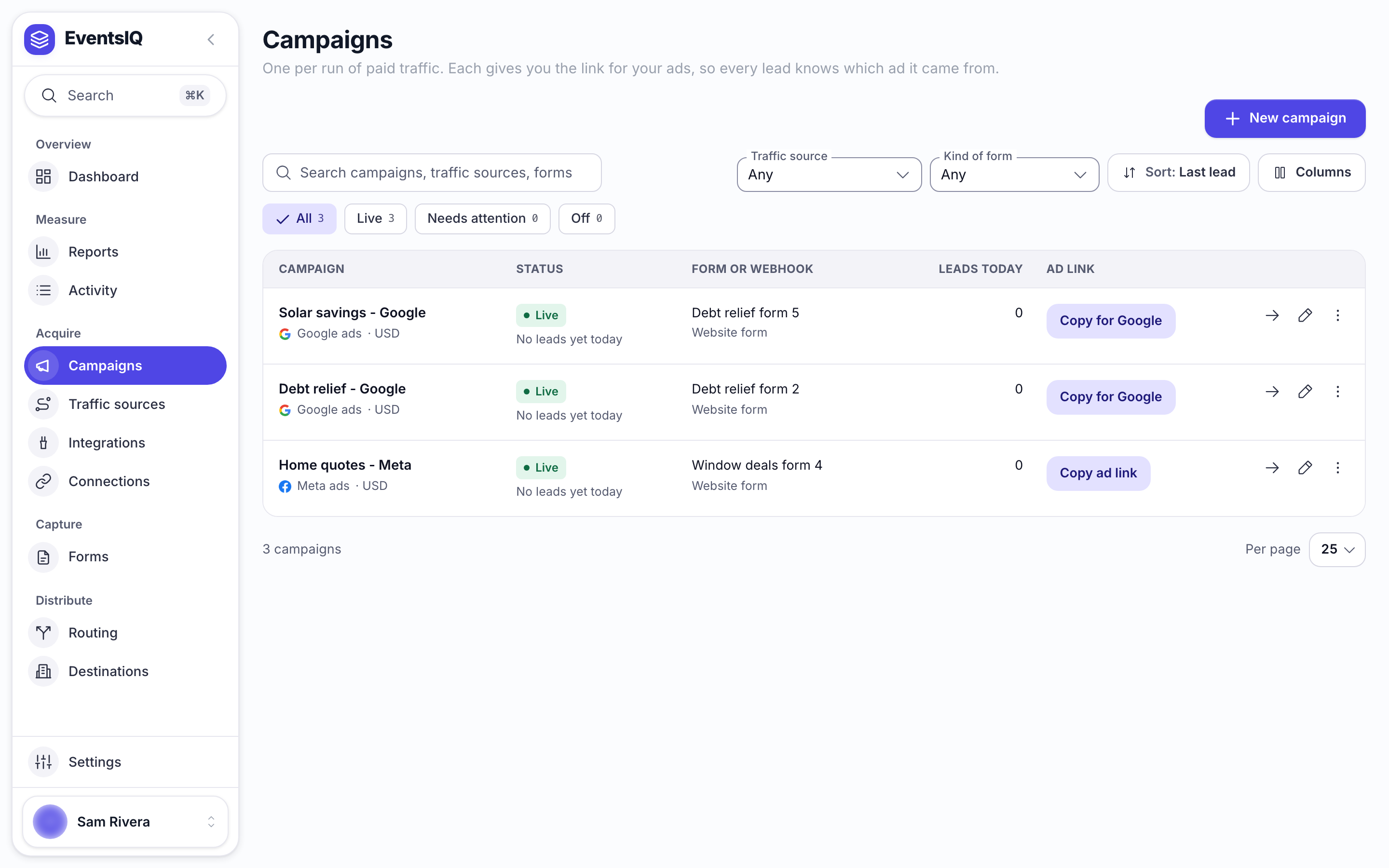
| Column | What it tells you |
|---|---|
| Campaign | Its name, its traffic source and currency, and Off when the traffic source is turned off |
| Status | Live, Needs attention with the reason, or Off, and when its last lead arrived today |
| Form or webhook | The form it uses and its kind: website form, instant form or webhook |
| Leads today | How many leads it brought in today |
| Ad link | What to put in the ad, copied in one click |
Updated can be shown from Columns.
Each row shows the campaign's status, its form or webhook, and the one thing to copy for its ad: Copy ad link, Copy for Google, or Fields to send for a webhook. Click a campaign's name to open its own page. Its More actions menu has Edit, Copy URL parameters only, Copy campaign ID, Open in Reports and Delete. Deleting a campaign does not delete its leads, but they stop being grouped under its name in Reports.
The campaign sheet
Click New campaign, or Edit on a campaign. The sheet has four tabs: General, Where clicks go, Preview and Tracking. Preview appears once the campaign has been saved.
General
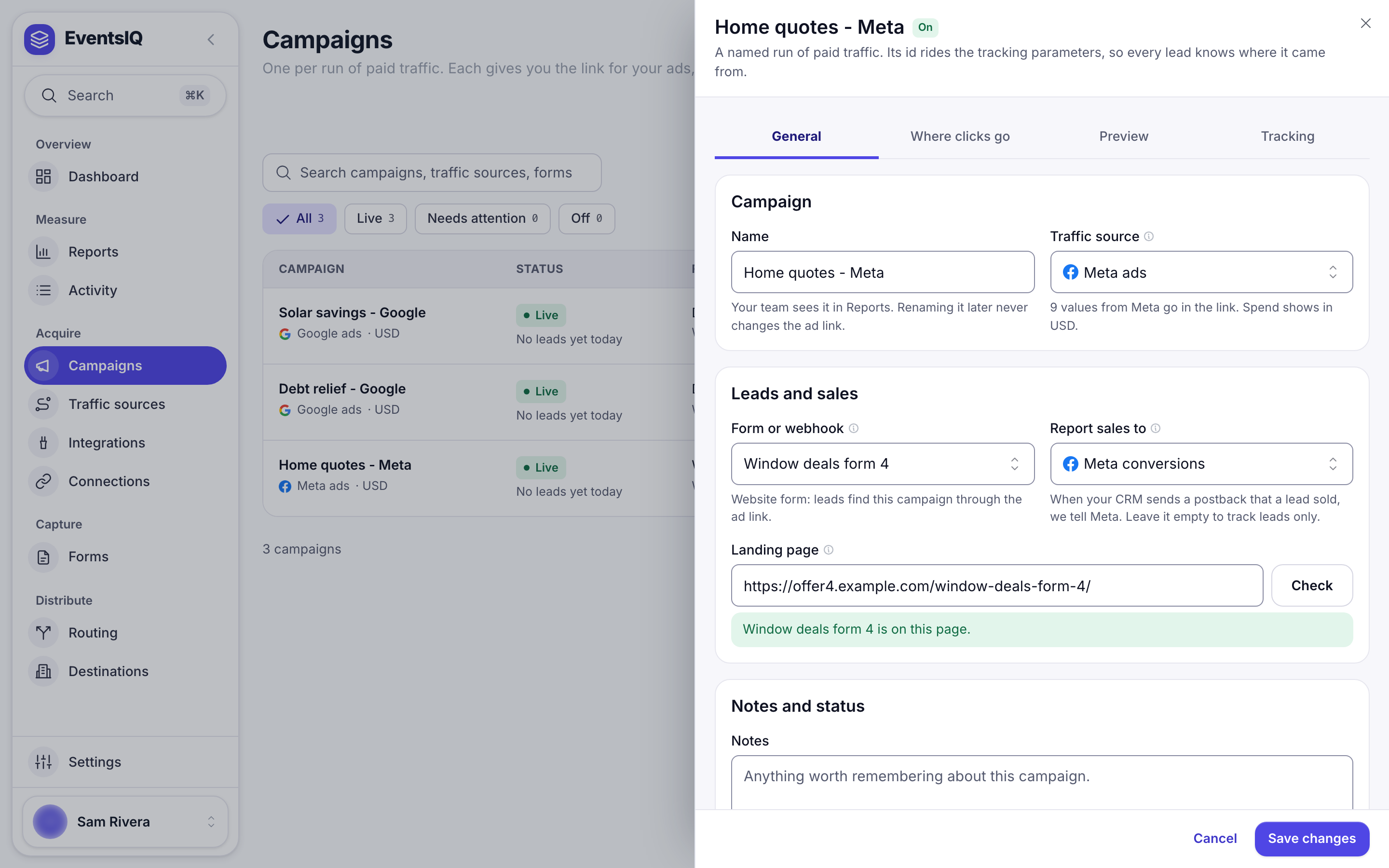
| Field | What it does |
|---|---|
| Name | How it appears in Reports and pickers. The link's address is made from it |
| Traffic source | The network. Its parameters go into the tracking URL |
| Form or webhook | Where the ads lead. Pick an existing form, or Create a new form.... Preview routing shows where its leads go |
| Report sales to | Where sales reported later by your CRM are sent. See Postbacks |
| Landing page | Website forms only: the page the form is embedded on |
| Ad campaign | Instant forms only: the network's own campaign this runs as |
| Notes | Anything for whoever reads this next |
| Campaign is on | Turn off to retire the campaign without deleting it |
Checking the landing page
Click Check beside Landing page and EventsIQ opens the page to look for the form.
- This form is embedded on that page. All good.
- A different form is on the page. Saving is blocked, because every lead would be credited to the wrong campaign.
- The page could not be read, for example because it needs a login. Tick I have opened this page myself and the form is on it to save anyway.
How leads are matched
Under Form or webhook the sheet shows how this campaign's leads will be matched to it:
| Shown | When | What it means |
|---|---|---|
| Needs the URL parameters | A website form | The ad must point at the tracking URL |
| The network reports the campaign | A Facebook, TikTok, Google or Snapchat instant form | Pick the Ad campaign. Nothing to paste |
| Whoever posts the lead sends the parameters | An inbound webhook | The sender must include the parameters as fields |
For an instant form, Ad campaign lists the campaigns cost tracking has read from that network. If it says No campaigns read from this network yet, set up cost tracking under Integrations and run it once.
Where clicks go
This tab decides where a visitor goes after they click.
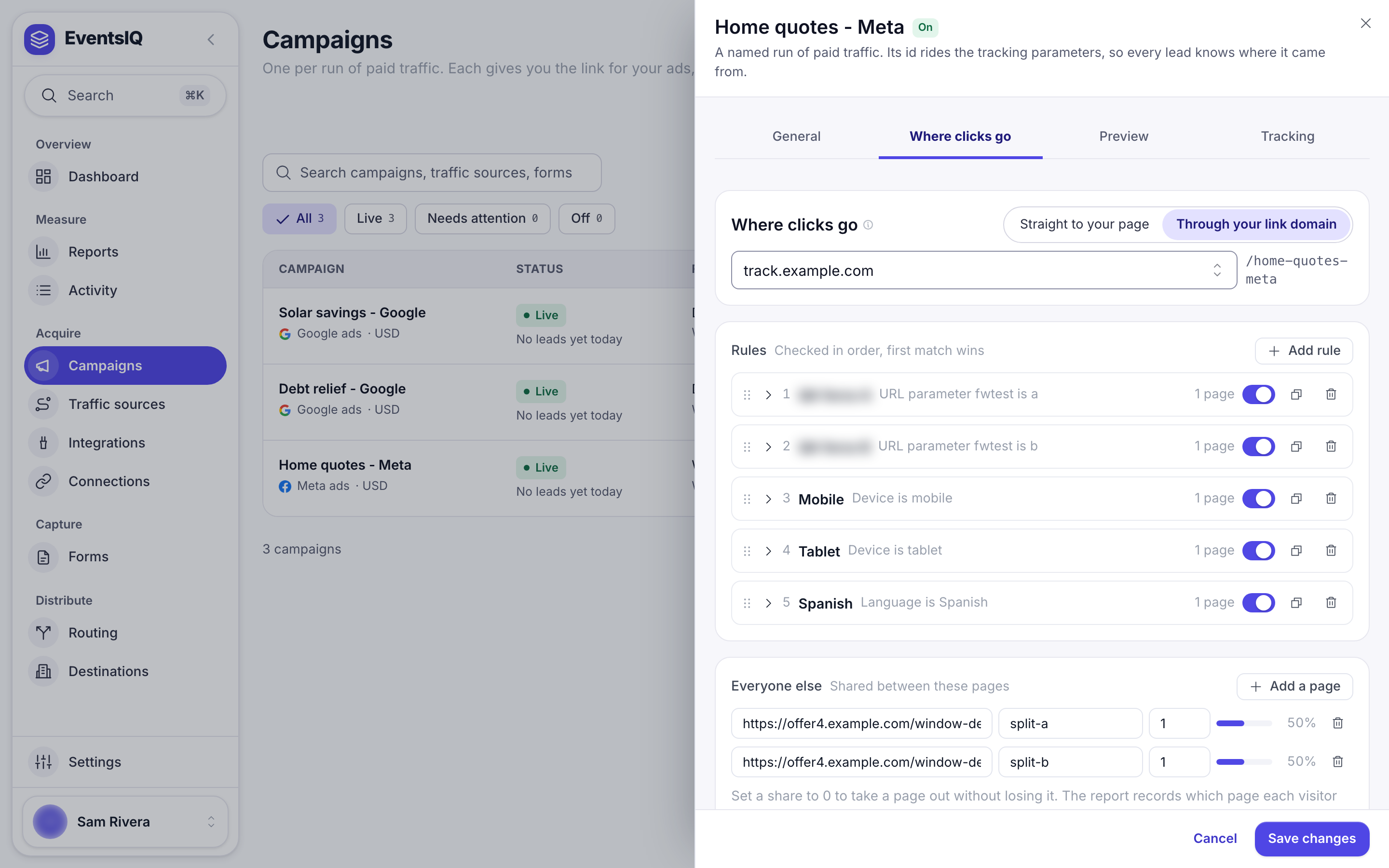
Where clicks go is the first choice:
- Straight to your page: the ad points at your landing page itself. Nothing else on this tab applies.
- Through your link domain: the ad points at your tracking domain, which records the
click and sends the visitor on. Pick the domain. The link's address is shown beside it, for
example
/solar-us. It is greyed out until you have a domain that is Live.
The rest of the tab is for clicks that go through your link domain.
Rules
Rules send some visitors somewhere other than your main page. They are checked in order, and the first match wins. Click Add rule, then:
- Name it, for example
Mobile. - Under When all of these are true, click Add a check. Pick a field and is or is not.
- Under Send them to, add the page. Add more than one with + Page and give each a weight to split this rule's visitors between them.
- Pick how they are sent: Standard redirect, Redirect and hide where they came from or Page refresh.
| Rule field | Example |
|---|---|
| Country, Region, City | Country is US |
| Device | Device is mobile |
| Operating system, Browser | Operating system is iOS |
| Language | Language is Spanish |
| Day, Hour | Day is Saturday. Uses the Rule clock time zone |
| URL parameter | utm_content is video |
Each rule has a switch to pause it, and buttons to move, duplicate or remove it.
Everyone else
Visitors no rule caught go to your landing page. To split test, click Split the traffic and add pages, each with a Name in reports and a weight. A weight of 0 pauses a page without removing it, so its numbers stay in the report.
The split is decided per click, so a returning visitor may see a different page. That matches how the ad network counts: each click is its own paid visit.
Rule clock
The time zone Day and Hour rules use. UTC unless you change it.
Preview
After the first save, Preview shows the whole path a lead takes: the traffic source, the form and the fields it collects, the routing and its destinations, and the events that fire. It is read only. Click Done to close.
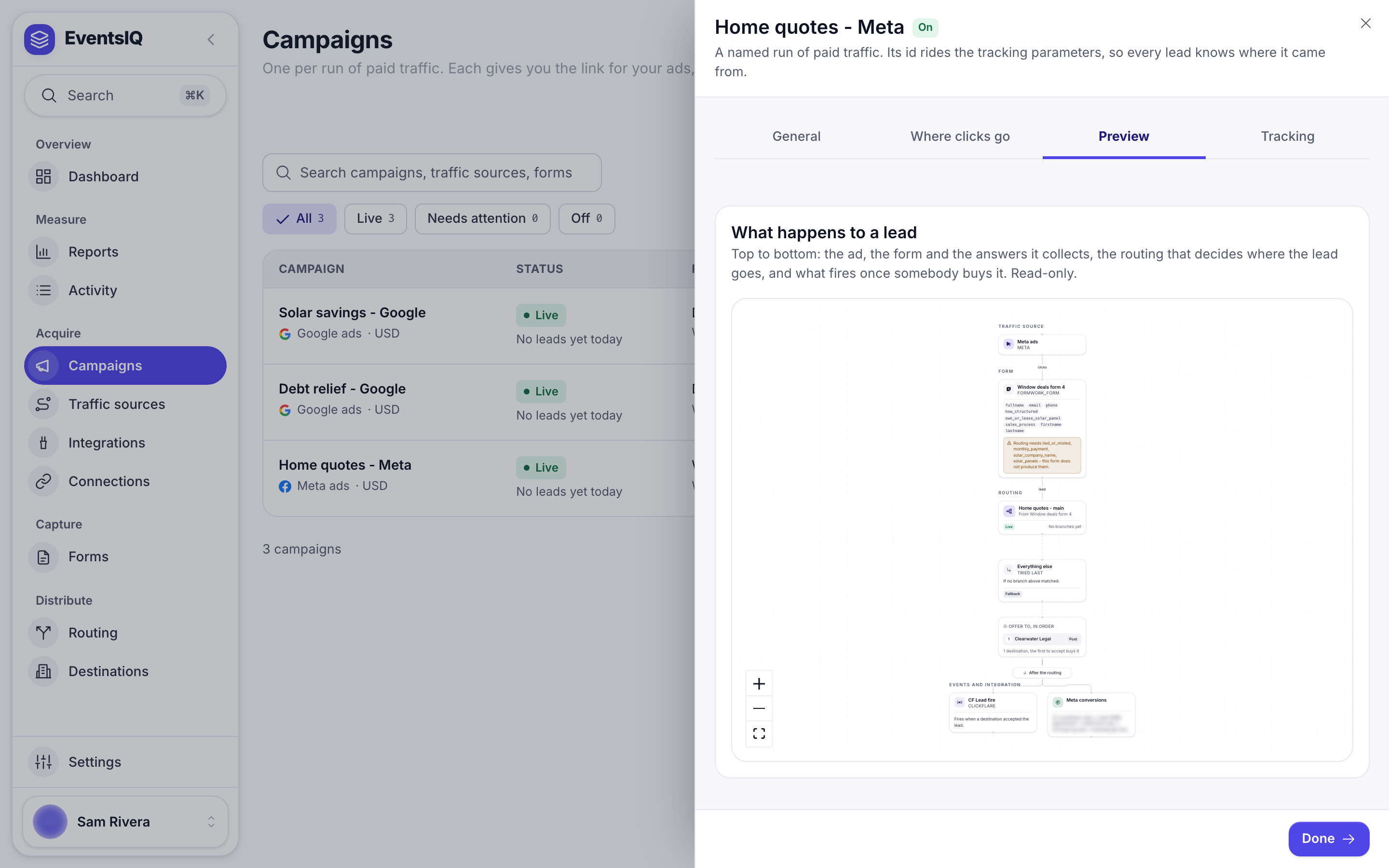
If the form does not collect something the routing needs, the form node says so in amber.
Tracking
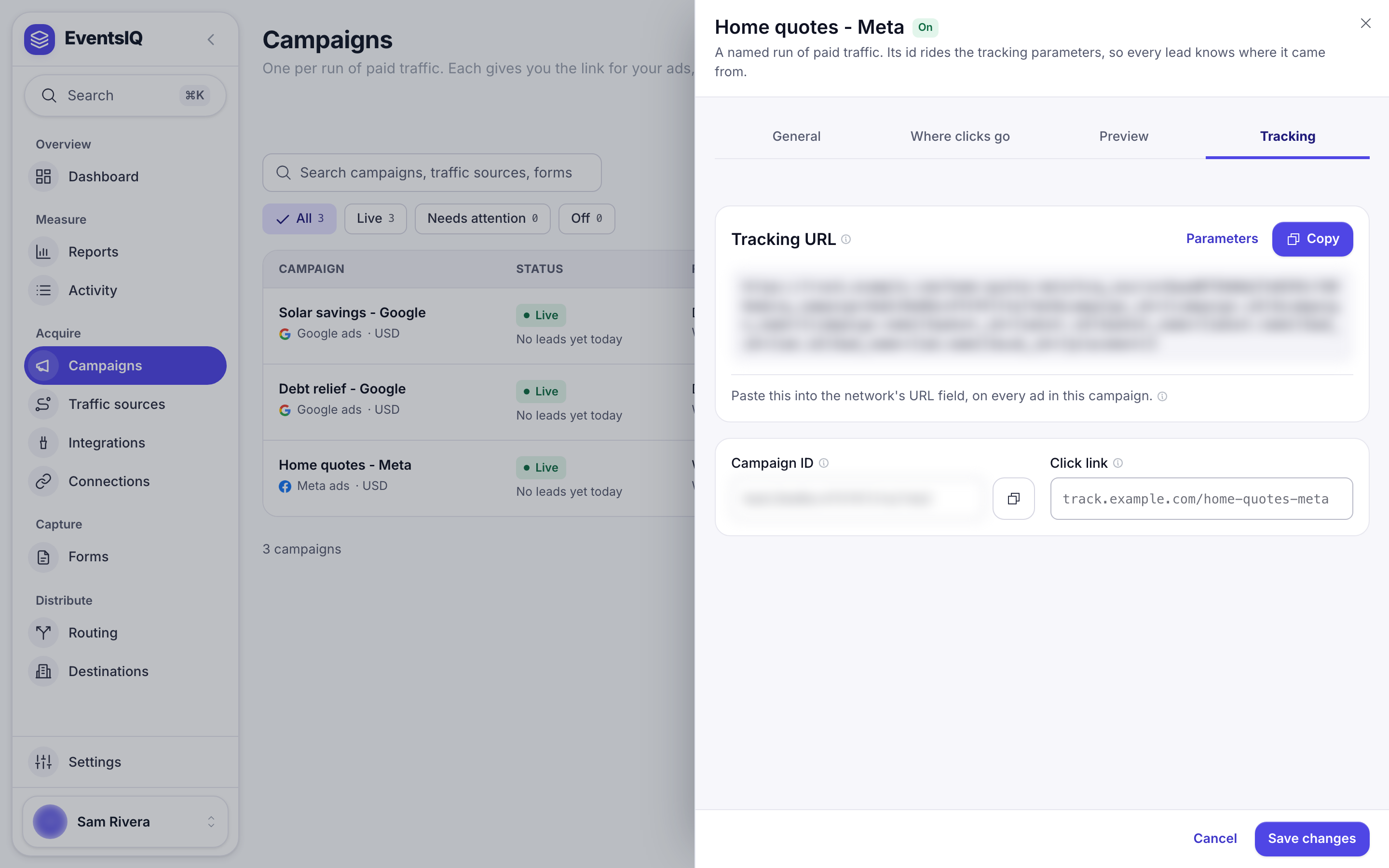
| Field | What it is |
|---|---|
| Tracking URL | The link for the ad. Copy copies all of it, Parameters copies just the part after ? |
| Campaign ID | This campaign's own id, which every click carries as eiq_campaign |
| Click link | The tracking domain and address, or Straight to your page |
A campaign through a link domain has a URL like this:
https://track.yoursite.com/solar-us?eiq_source=…&eiq_campaign=…&campaign_id={{campaign.id}}&…
A campaign that goes straight to your page has your landing page as its URL, with the same parameters on the end.
The line under the URL tells you what to do with it for this kind of form: paste it into the ad, do nothing because it is an instant form, or give the parameters to whoever posts the leads.
Saving
A new campaign's button is Looks good, which saves and moves you to Preview. After that it is Save changes. The link starts working as soon as you save.
The link's address is fixed the first time you save, so renaming the campaign later does not break ads that are already running.
If you pick a different tracking domain, or switch to going straight to your page, the old link stops working. Update every ad before you save.
Related
- Set up paid traffic: a campaign set up start to finish.
- Tracking domains: the domain a campaign link uses.
- Postbacks: how the integration a campaign reports sales to is used.
- Reports: what each campaign spent and earned.