Facebook Instant Forms
Pick a Meta Lead Ads form and match its fields to yours.
A Facebook Instant Form is a lead form that lives inside Meta's ad platform: you build it in Ads Manager, and it opens without ever leaving Facebook or Instagram. EventsIQ does not build those forms. It connects to one you already have and takes the leads as they come in.
The work therefore splits differently to a website form. There is no builder. Instead there is one step nobody can do for you: telling EventsIQ which of Meta's field names mean which of yours.
Leads usually reach EventsIQ within seconds of being submitted. If one is ever missed, EventsIQ picks it up a little later on its own, so a short outage does not lose leads.
Step 1: Start a new form
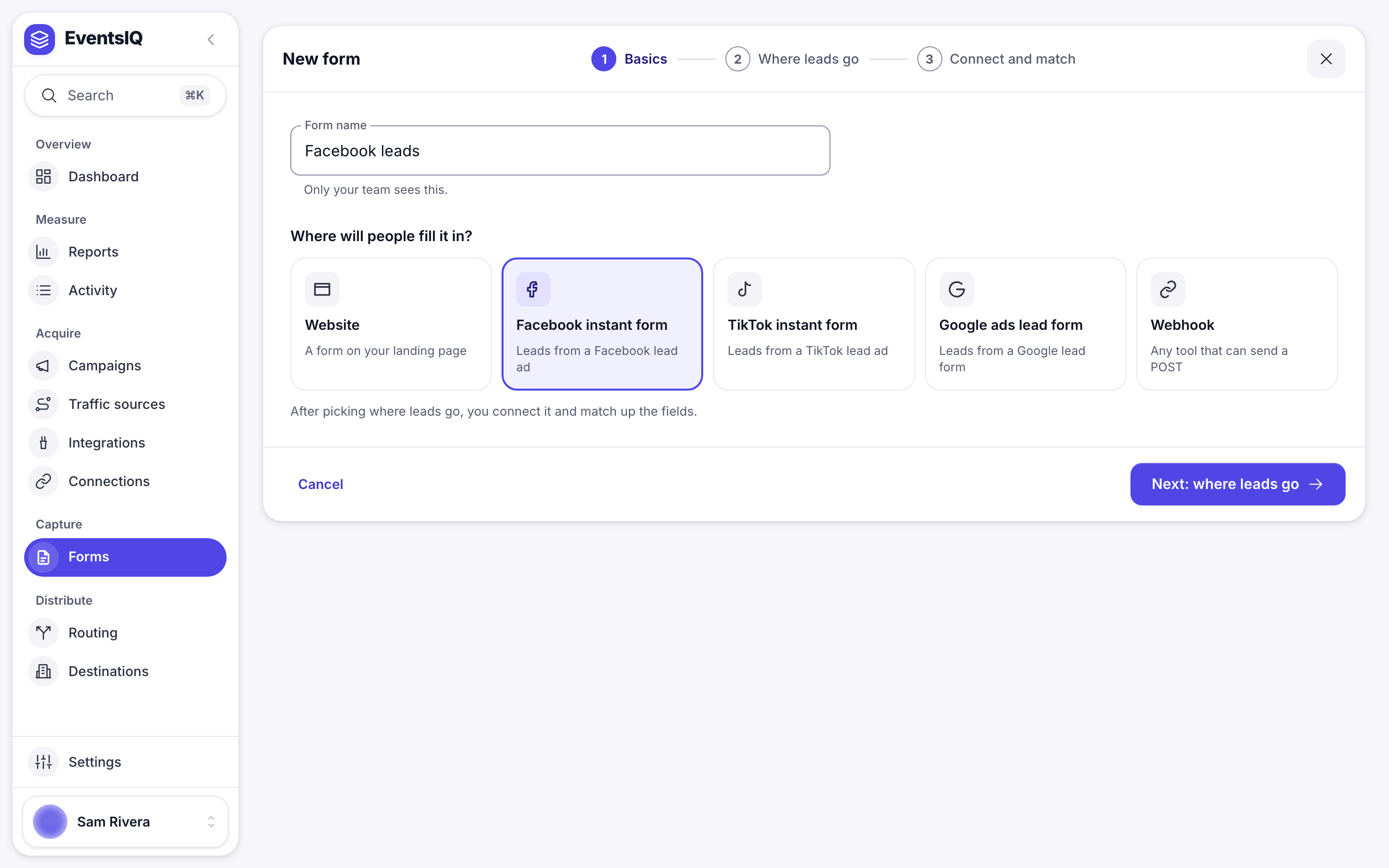
Go to Forms, click New form, give it a name and choose Facebook instant form. Then click Next: where leads go.
Step 2: Pick a routing setup
Same step as any other form: pick which routing setup these leads should run through and click Continue, or click Decide later.
If the routing setup expects fields this form does not collect, EventsIQ tells you as you pick it. That warning is worth reading: it is the difference between finding out now and finding out from a destination's rejection rate next week.
Step 3: Connect Facebook and pick the form
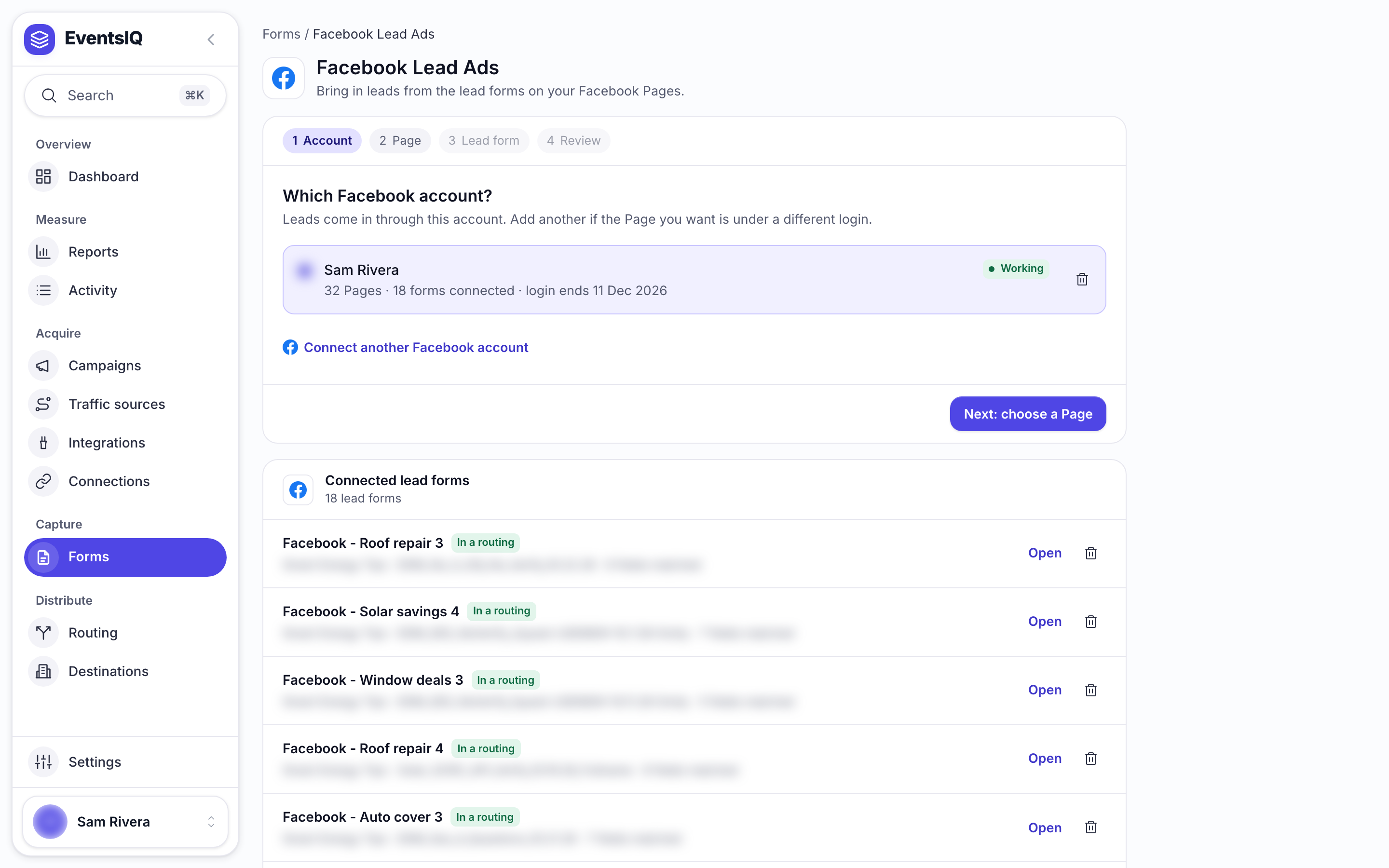
If no Facebook account is connected yet, click Connect Facebook. The Facebook sign in opens in a new tab, deliberately: leaving this page would throw away the wizard you are halfway through. Approve the permissions, come back to the EventsIQ tab, and click Refresh accounts. To use a different login, click Connect another account.
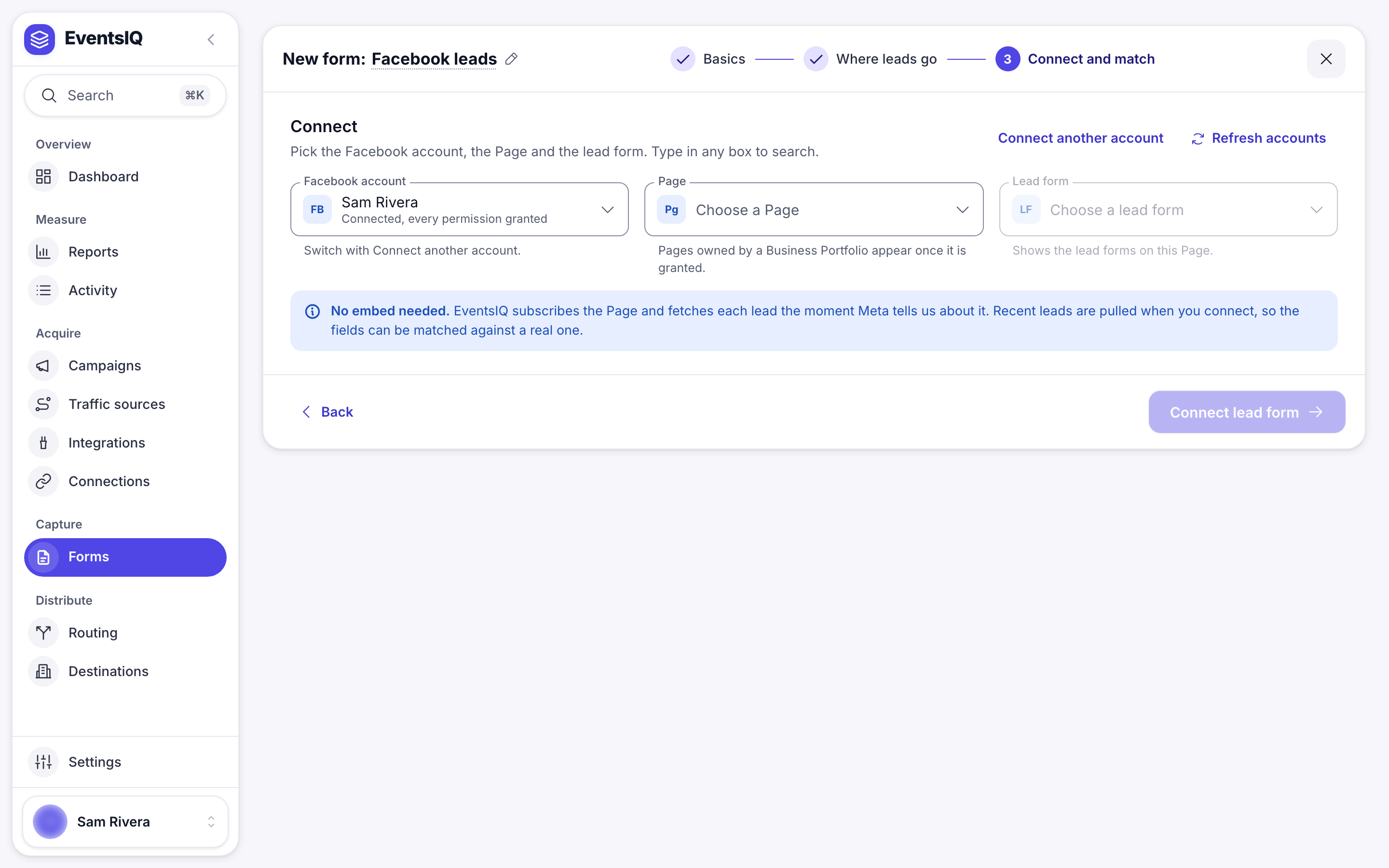
Meta lets people approve a subset of the permissions requested. If lead retrieval or Page access is declined, the connection appears to succeed and then fails to fetch anything. EventsIQ shows missing permissions on the account here and on its row under Acquire → Connections. If you see them, pick Reconnect in the row's menu and approve everything rather than trying to work around it.
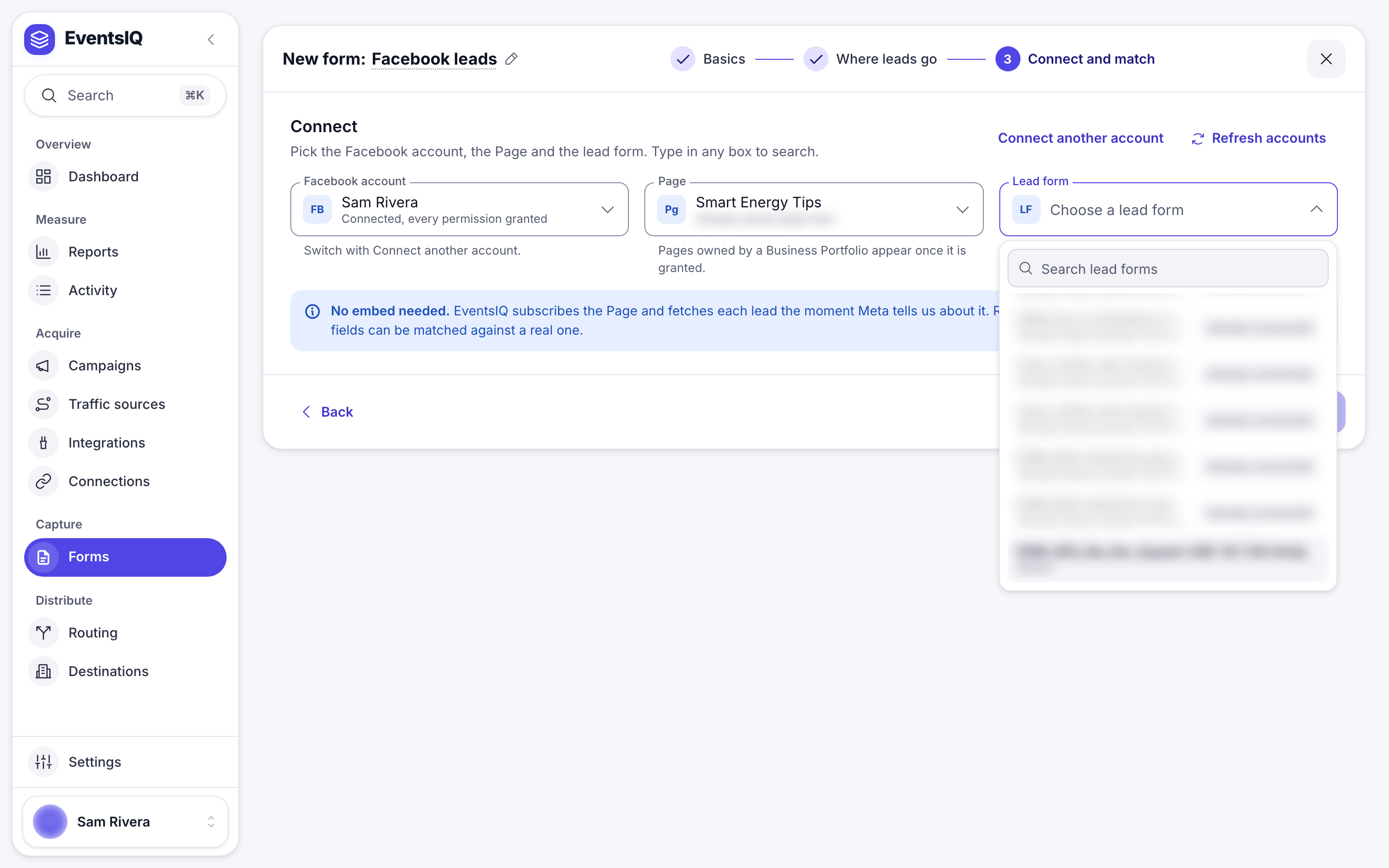
Then choose the Page the ad runs from, and the Lead form itself. Type in any box to search. Forms already connected to EventsIQ are marked already connected, so you cannot create a duplicate by accident. Click Connect lead form.
Step 4: Match up the fields
This is the step that matters. It follows straight on in the wizard, and you can come back to it at any time: open the form from the Forms list and its Match fields tab.
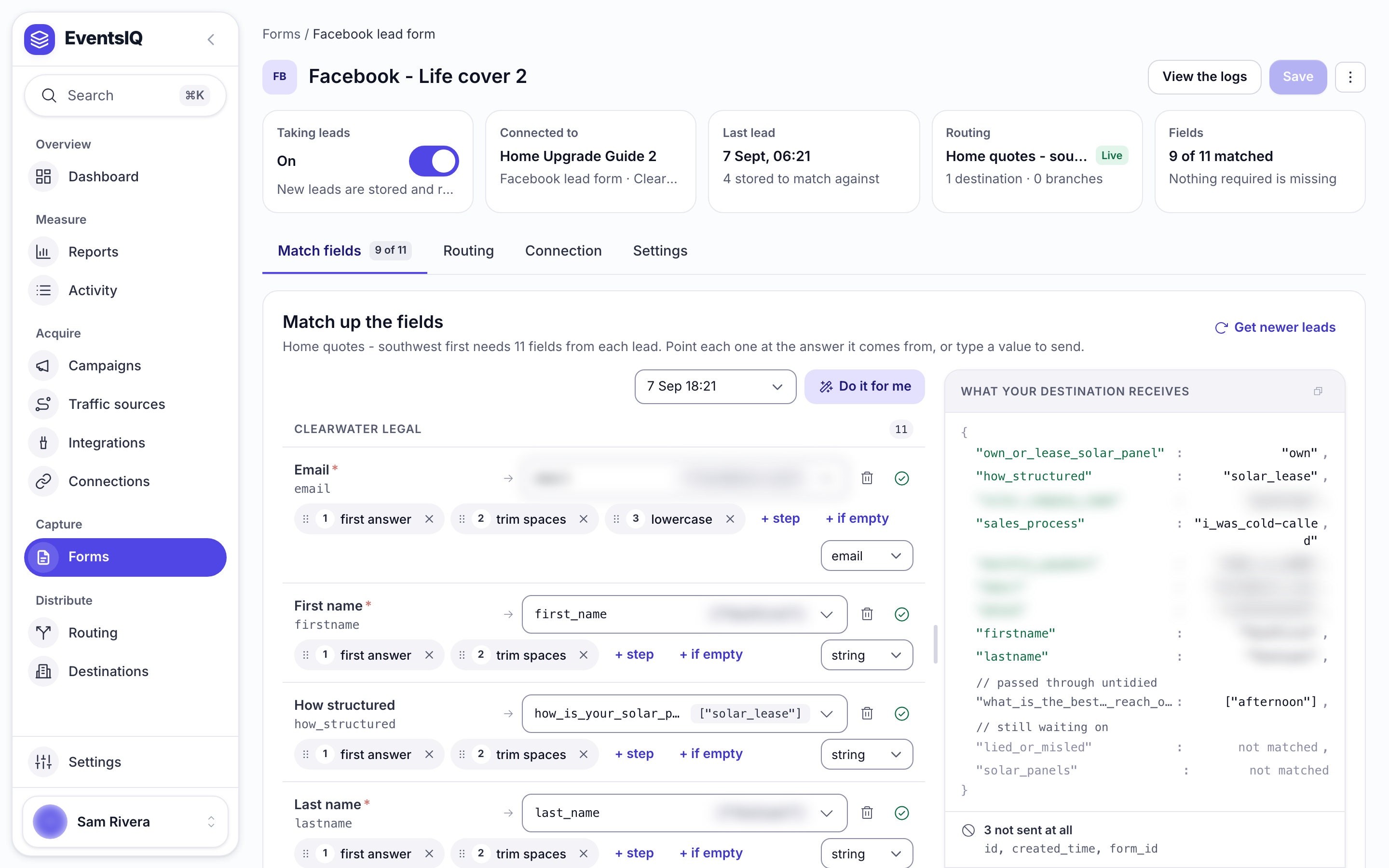
The left column lists everything found in an actual lead from this form. The right side is where you say what each one means.
Press "Do it for me" first. It matches everything it recognises by name and saves you most of the typing. Then check its work and fill in the rest: the badges in the toolbar tell you how much is still unmapped.
For each row you can also set:
- Clean-up steps: an ordered chain applied before the value is stored. Trim whitespace, take the first answer from a list, format a phone number into E.164, turn "Texas" into "TX". The order matters and is shown as numbered chips.
- Kind of value: what the answer should be coerced into. Following the canonical field's own type is almost always right.
- A star marks an answer a destination in the routing requires, so a lead without it would be turned away.
A form connected minutes ago has no stored leads yet. Press Get newer leads and EventsIQ will ask Meta for recent ones. If there are none, submit a test lead through Meta's Lead Ads Testing Tool and press it again.
Meta's test leads look broken. They are not.
Meta's testing tool sends placeholder strings like <test lead: dummy data for phone_number>. Those
cannot be turned into a real phone number, so the preview says so in amber and tells you a real lead
will convert fine. That is the expected result on a correctly configured form, and it is not an
error.
Step 5: Confirm it works end to end
Send a test lead through Meta's Lead Ads Testing Tool, then open Activity → Lead logs. The lead should appear within a few seconds. Open it: Answers shows your matched fields, and Exactly what arrived, under For developers, shows exactly what Meta sent.
Compare the two. If a value is missing from Answers, the match for that field is wrong, and what arrived shows you the field name it actually came under.
Keeping it working
Connections can lose access. EventsIQ keeps your Facebook connection signed in by itself. If Meta takes the access away, for example because somebody removed the app or changed a Page role, the connection is flagged and needs reconnecting. Connections covers what breaks it and how to reconnect.
Changing the form at Meta's end changes the field names. Adding or renaming a question in Ads Manager will produce leads with paths your mapping does not know about. Pull a fresh lead and check the mapping after any change to the form.
What to read next
- Connections: keeping the Meta grant this all depends on alive.
- Fields: what the canonical keys on the right of the mapping editor are.
- Routing: the routing these leads run through.
- Destinations: where these leads end up.