Google Ads Lead Forms
Connect a lead form asset by webhook, test it, and route its leads.
A Google Ads lead form is a form asset Google shows inside your ad, so people can send their details without leaving Google. Google posts each lead to EventsIQ the moment it is submitted, and EventsIQ routes it like any other.
There is nothing to sign in to. Google delivers by webhook: you paste a EventsIQ address and a key into the lead form, and Google sends that key with every lead to prove it is really Google.
Google has no way for EventsIQ to go back and fetch a lead it missed. EventsIQ stores each lead before it answers Google, and only answers "OK" once the lead is safe, so Google retries anything that did not land. It is still worth testing the setup before your ads go live.
What you'll need
- A Google Ads campaign with a lead form asset, or permission to edit one.
- The lead form's asset ID. In Google Ads, open Assets, click your lead form to edit it, and
copy the number after
assetId=in the address bar. - A routing to send the leads to, or you can attach one later.
Step 1: Create the source
- Go to Forms and click New form. Give it a name, for example
Google - solar cancellation. - Pick Google Ads lead form and click through to Where leads go. Pick a routing and click Continue, or Decide later to store leads without sending them anywhere yet.
- On Connect and match, fill in Lead form ID: the asset ID, digits only.
- Click Connect lead form.
EventsIQ now shows the two values Google needs:
| Value | What it is |
|---|---|
| Webhook URL | https://app.eventsiq.io/api/webhooks/google. The same for every lead form |
| Webhook key | A secret unique to this source. Google sends it back with every lead |
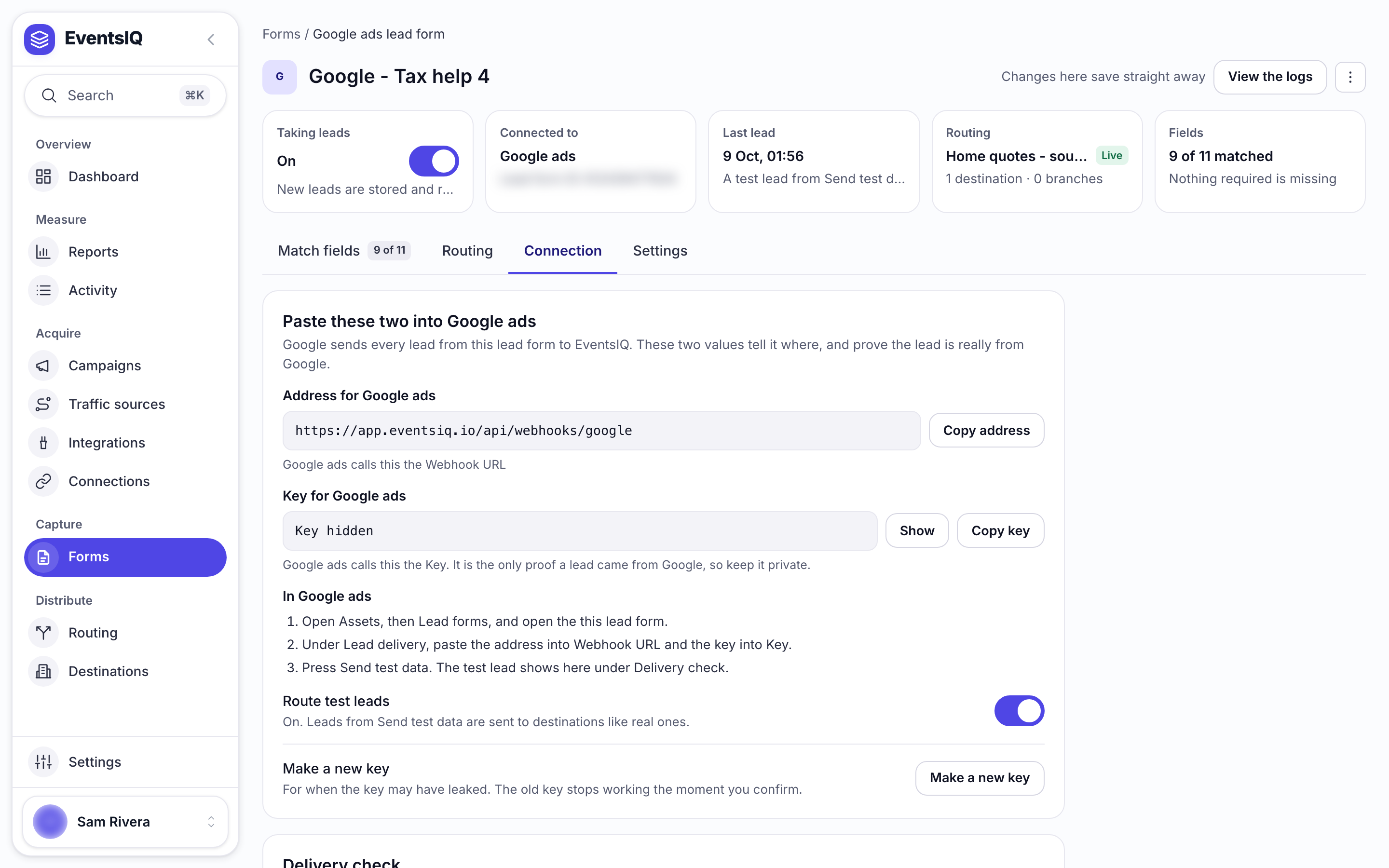
The same two values are always on the source page: open the form from the Forms list, then its Connection tab, under Paste these two into Google Ads. There they are called Address for Google Ads and Key for Google Ads. The key stays hidden until you click Show, and Make a new key replaces it if it may have leaked.
Step 2: Paste them into Google Ads
- In Google Ads, open the campaign's lead form asset and click Edit.
- Scroll to Export leads from Google Ads, open Other data integration options, and find Webhook integration.
- Paste the Webhook URL and the Key.
- Click Send test data. Google shows Test data sent when it reached EventsIQ.
- Save the asset.
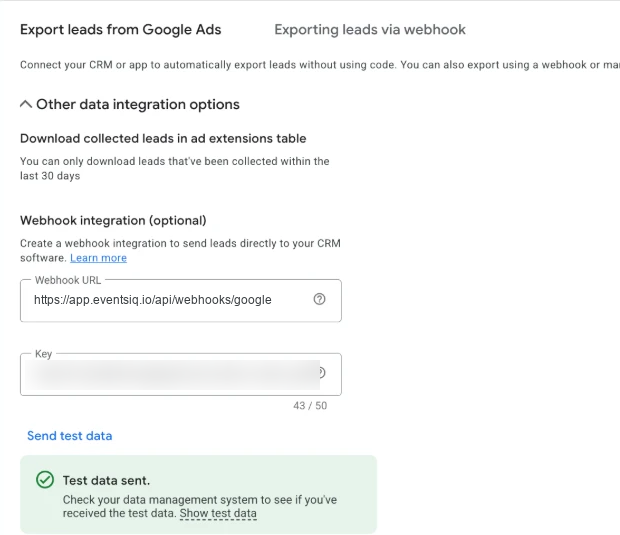
A Google lead form can send to one webhook only. If the box already holds another address, for example another system's, replacing it stops that system getting leads. Check before you paste, and make a copy of the form for testing if you need both.
Back in EventsIQ, the wizard watches for the test lead for three minutes. A lead arrived. The ID and the key are both right. means you are done. If it says Nothing has arrived yet, check that:
- the Lead form ID matches the asset's
assetId, - the key was pasted exactly, with nothing missing at either end,
- the asset was saved in Google Ads.
Click Check again to look immediately.
Step 3: Match up the fields
Google names its answers with fixed ids like FULL_NAME, EMAIL and PHONE_NUMBER, plus your own
questions. EventsIQ fills in the field map from the first lead that arrives, usually the test lead, so
most of it is done for you. Check it on Match up the fields and correct anything it guessed
wrong. See Fields.
Test leads are stored, not sold
Google marks its Send test data leads as tests. EventsIQ stores them, so you can map fields and check delivery, but does not route them, so a fake lead never reaches a real destination.
To test the whole path, open the source and turn on Route test leads. Turn it off again before your ads go live, or every test you send will be posted to your destinations.
Send test data uses the same lead id every time, and EventsIQ stores each lead id once, because Google may deliver a real lead more than once. A second test is answered but not stored again. To send another test, delete the earlier test lead in Logs first.
The source page
Open the source from Forms to manage it. Its Connection tab, under Paste these two into Google Ads, has:
| Control | What it does |
|---|---|
| Address for Google Ads | The address, with Copy address |
| Key for Google Ads | Show and Copy key |
| Route test leads | Off by default. On routes Google's test leads like real ones |
| Make a new key | For when the key may have leaked. The old key stops working the moment you confirm |
Check for delivered leads, on the Match fields tab, refreshes the sample leads used for field matching.
If you make a new key, paste it into Google Ads straight away. Leads sent with the old key are refused until you do.
Testing without Google
You can send exactly what Google sends with curl. Use your form id and key, and change lead_id
each time:
curl -X POST "https://app.eventsiq.io/api/webhooks/google" -H "Content-Type: application/json" -d '{"lead_id":"TEST_LEAD_001","form_id":412439477634,"campaign_id":24143605090,"google_key":"YOUR_KEY","is_test":true,"gcl_id":"TEST_GCLID_001","api_version":"1.0","user_column_data":[{"column_id":"FIRST_NAME","string_value":"Test"},{"column_id":"LAST_NAME","string_value":"Lead"},{"column_id":"EMAIL","string_value":"test@example.com"},{"column_id":"PHONE_NUMBER","string_value":"+15555550100"}]}'| Reply | Meaning |
|---|---|
{} | Stored, or already stored with that lead_id |
| 403 | The key does not match this lead form |
| 404 | No EventsIQ source has that lead form ID |
| 400 | The body was not JSON, or lead_id or form_id is missing |
What EventsIQ keeps from each lead
Besides the answers, every Google lead carries:
- The click id. Google's
gcl_idis stored asgclid, usable as{{params.gclid}}in a destination body. The Google postback uses it to report the sale back to Google. - The campaign. Google's
campaign_id, ad group and creative ids. A EventsIQ campaign on this form claims that Google campaign's spend in Reports, so you see cost and revenue together.
Related
- Global events: sending the sale back to Google.
- Fields: mapping Google's answers.
- Connections: connecting Google for spend and conversions.